Introduction
What is a Page ID in WordPress?
A WordPress Page ID is a unique number for each page on your website. This number helps WordPress identify and manage each page separately. You can use it to find your WordPress page.
Role in WordPress
Page IDs are unique numbers that help you manage your WordPress website. They let you customize specific pages with different styles, scripts, or functions. For example, if you want to change the look of just one page, you can use its ID in your website code.
Plugins and widgets often use Page IDs to decide where to display content or how to work. This gives you more control over your website’s design.
How to Find Page ID in WordPress
1. Using the WordPress Admin Dashboard
- Log in to your WordPress Admin Dashboard:
Start by logging into your WordPress site’s admin area using your credentials.

- Navigate to the Pages section:
In the left-hand menu, click on Pages. This will take you to a list of all the pages on your site.

- Hover over the desired page:
Scroll through the list to find the page for which you need the ID. Hover your mouse over the page title (do not click it).

- Look at the URL in your browser’s status bar:
As you hover over the page title, you’ll notice a URL appearing at the bottom left corner of your browser window (in the status bar). This URL contains the Page ID. It will look something like this: post.php?post=245008&action=edit. In this example, 245008 is the Page ID.
You can also find the Page ID in the address bar at the top of your browser. Just click to edit the page, and it will be there.
2. Using the URL in the Browser
- Log in to your WordPress Admin Dashboard:
Start by logging into your WordPress site’s admin dashboard.
- Navigate to the Pages section:
From the left-hand menu, click on Pages to view the list of all your site’s pages.
- Click on the page you want to edit:
Find the page you need to edit and click on its title. This opens the page editor. Or, click on the link ‘Edit’ to open it.

- Check the browser’s address bar:
After opening the page editor, look at the URL in your browser’s address bar. It will look like this:
https://yourwebsite.com/wp-admin/post.php?post=123&action=edit
In this URL, the number after post= is your Page ID. For example, 123 is the Page ID in this case.
The Page ID is in the URL when editing a page in WordPress. It’s the number after “post=“.
Need the Page ID fast? It’s in the URL when editing a page.

You can find the Page ID or post in the URL. This works for all themes and plugins.
3. Using Plugins
Recommended Plugins:
Here are a few popular plugins that can help you effortlessly locate Page IDs:
1. Reveal IDs: The plugin adds a column to your Pages, Posts, and other page types. The column shows the ID.

2. Show IDs: This plugin shows IDs for posts, pages, categories, and tags in the admin area.

3. Show IDs by Echo: And this plugin shows ID column for posts, pages, and media in the admin dashboard.

Common Use Cases for Page IDs
Page IDs are incredibly useful when it comes to customizing and managing your WordPress site. Here are some common scenarios where you might use Page IDs:
Customizing Styles
Example:
/* Targeting a specific page using its ID */
.page-id-123 .entry-title {
color: #127036; /* Change the title color on this specific page */
}
.page-id-123 .content-area {
background-color: #f0f0f0;/* Set a different background for the content area */
}
In the example above, .page-id-123 targets the page with ID 123, allowing you to apply custom styles only to that page.
Not comfortable editing CSS directly? Our WordPress development team can handle custom styling without the risk of breaking your site.
JavaScript
// JavaScript targeting a specific page
if (document.body.classList.contains(‘page-id-123’)) {
// Code that should only run on the page with ID 123
alert(“Welcome to this special page!”);
}
This code checks if the current page has the class “page-id-123”. If it does, it runs a specific function. For example, it could show a custom message or start an animation.
Shortcodes and Widgets
Example with Shortcodes:
// Shortcode usage within a theme template
if (is_page(123)) {
echo do_shortcode(‘[your_shortcode]’);
}
[your_shortcode] will only work on page 123. This lets you change the content on that page without affecting other pages.Example with Widgets:
Some widget management plugins (like Widget Options, Content Aware Sidebars, or Dynamic Widgets) allow you to set visibility rules based on Page IDs. This means you can choose to show or hide widgets on specific pages by entering their IDs in the plugin settings.
How to Find Page ID in WordPress If You Can’t Locate It
Use a Plugin
Check the Source Code
page-id-123. This method is a bit more advanced but can be a reliable fallback if other methods fail.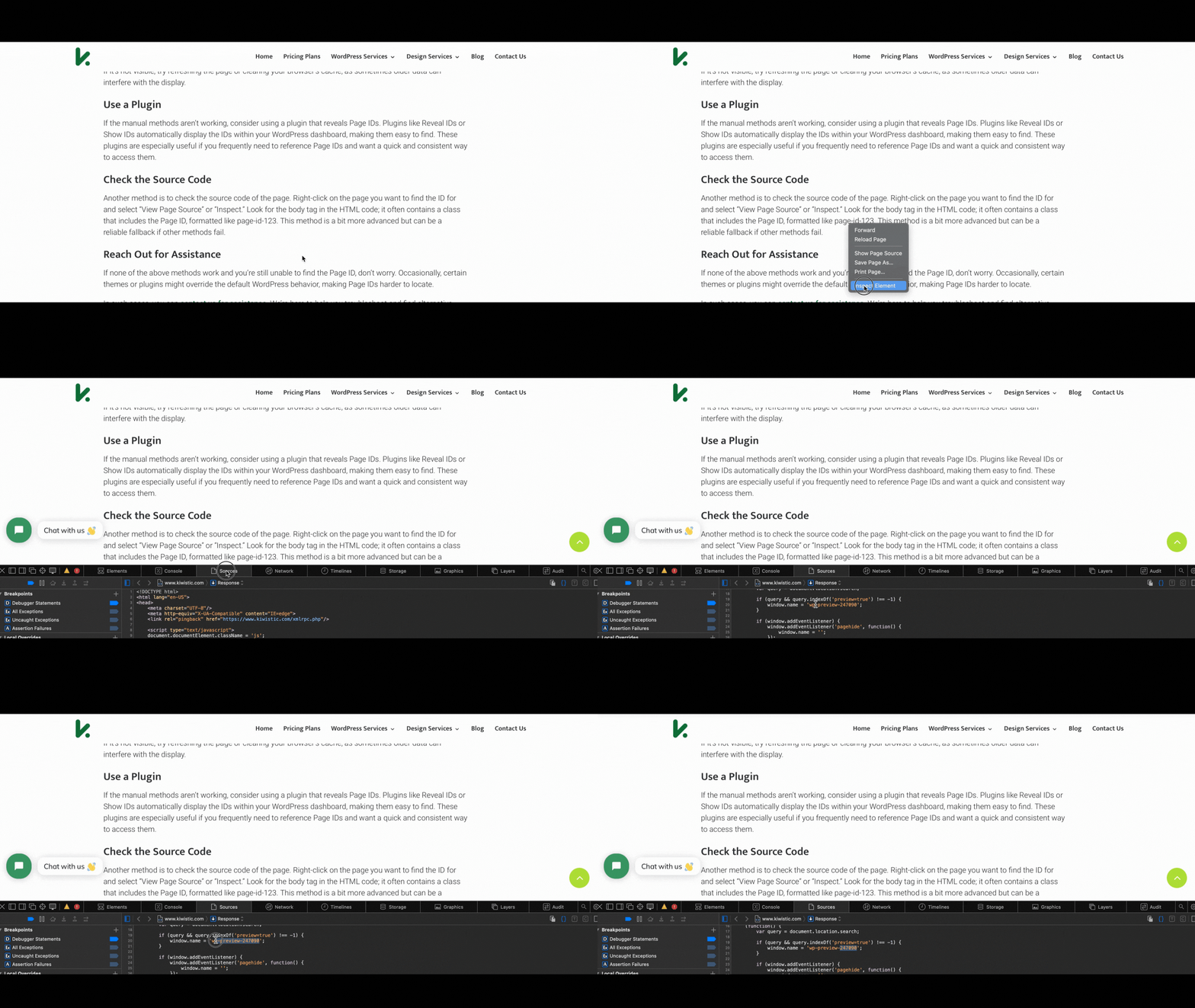
Reach Out for Assistance
If none of the above methods work, don’t worry — certain themes or plugins occasionally override default WordPress behavior, making Page IDs harder to locate than usual. In that case, get in touch with our WordPress team and we’ll track it down for you.
Conclusion
If you’re building something more complex or want a WordPress site that’s properly structured and optimized from the start, our WordPress development team can help you get there — without the guesswork.
FAQ
Can I change a WordPress Page ID?
No — Page IDs are assigned automatically by WordPress when a page is created and cannot be changed manually. They are stored permanently in the database.
If you need a fresh ID, the only way is to delete the page and recreate it, which will assign a new one. For most use cases, however, the existing ID works perfectly fine.
Does a Page ID change if I migrate my WordPress site to a new domain?
No — Page IDs are tied to your WordPress database, not your domain name. When you migrate your site correctly (database included), all Page IDs remain exactly the same on the new domain.
This means any custom CSS, JavaScript, or plugin settings that reference specific Page IDs will continue to work without changes.
What is the difference between a Page ID and a Post ID in WordPress?
In WordPress, both pages and posts are stored in the same database table (wp_posts), so they share the same ID system. The difference is that Page IDs refer to static pages (like About, Contact, Services), while Post IDs refer to blog posts.
The method for finding both is identical — check the URL when editing in your admin dashboard.