WordPress Image Optimization: The Complete Guide

}

Last updated Mar 23, 2025

TABLE OF CONTENTS

Why Choosing the Best Image Format for WordPress Matters?
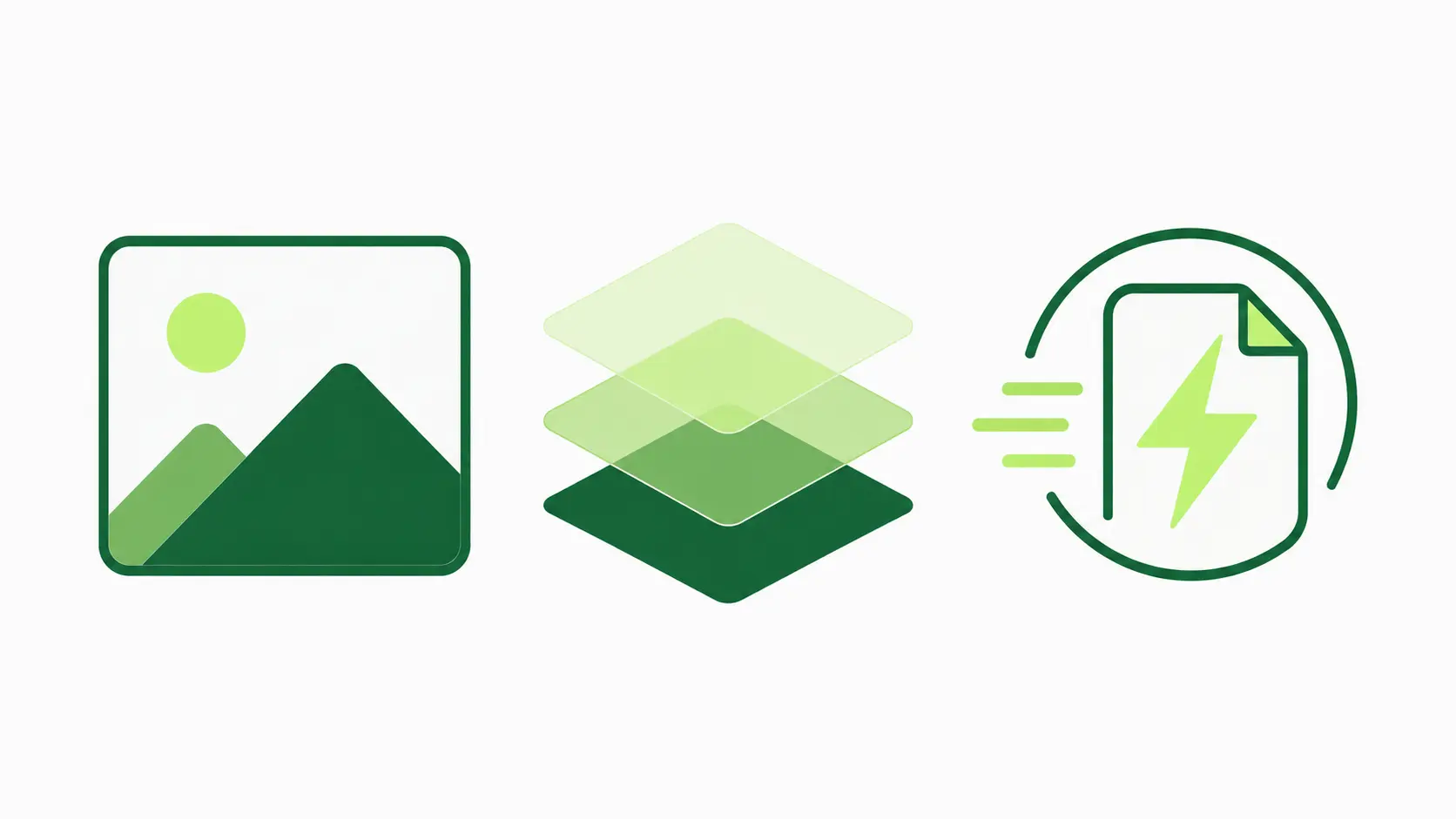
Is your WordPress website feeling sluggish? Do you dream of faster loading times and higher search engine rankings?
The secret might just lie in optimizing your images. Images are usually the biggest part of a website’s size. Unoptimized images can significantly slow down your site.
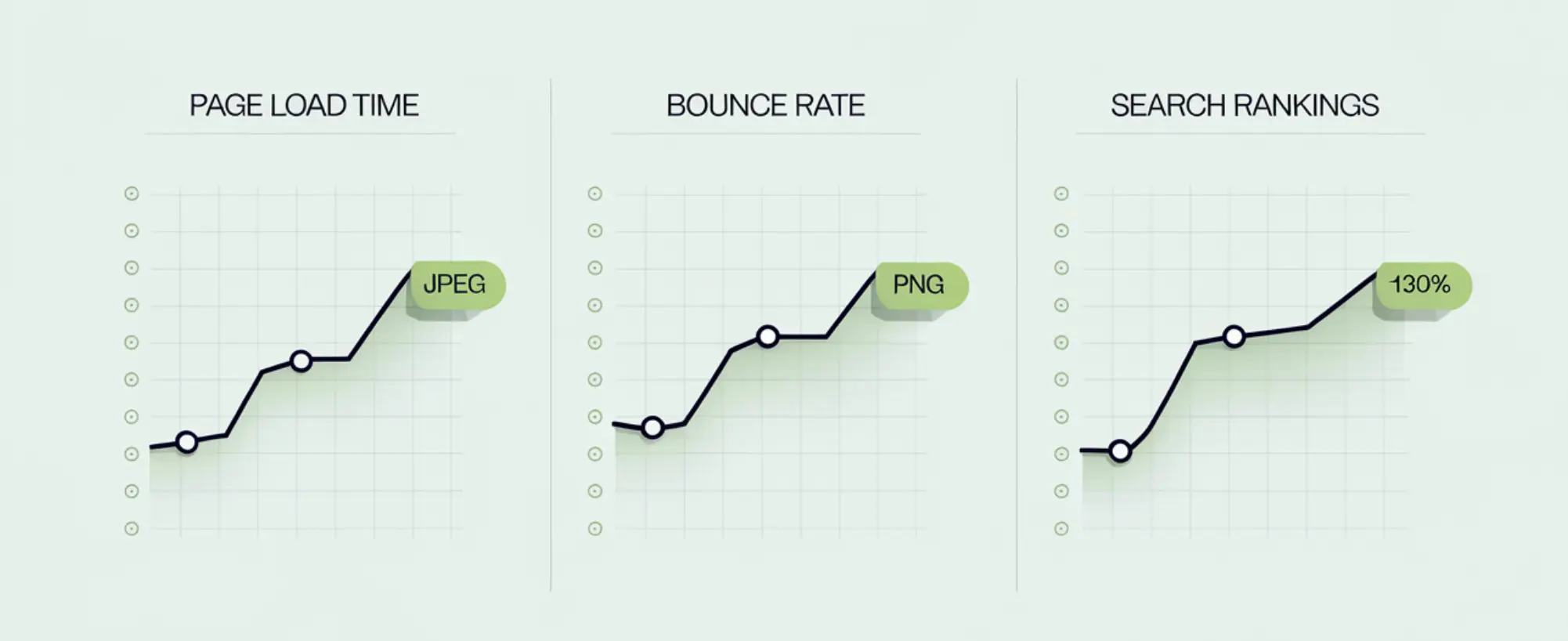
This affects your site’s performance, SEO, and how users feel when they visit.
Best Image Formats for WordPress

In this complete guide to WordPress image optimization, we’ll cover everything you need to know. We’ll show you how to serve stunning visuals without slowing down your site.

We’ll explore the world of image formats like WebP, PNG, JPEG, and SVG. We’ll find out the best ways to pick the right format for your images. We’ll also learn how to compress them well.
Moreover, we’ll see how WordPress plugins can make optimizing images easy. This way, you can make your images look great without slowing down your site.
Get ready to transform your WordPress website into a lean, mean, and visually appealing machine!

What is WordPress Image Optimization?

WordPress image optimization is about making images smaller without losing quality.
This means picking the best image format, compressing, resizing, and using tools and plugins.

The aim is to make your images look good and load fast. This improves your website’s performance.
Best Image Format for WordPress

Why is Image Optimization Important for WordPress?

Image optimization is crucial for any WordPress website aiming to succeed in today’s competitive online landscape.
The benefits are multifaceted, impacting everything from search engine rankings to user satisfaction.

Let’s explore the key reasons why you should prioritize image optimization.

1. Website Speed and Performance

Website speed is a critical ranking factor for Google and other search engines. Large, unoptimized images can slow down your website a lot.
This makes the user experience bad and can hurt your search engine rankings.

Optimized images, on the other hand, load quickly, improving website speed and boosting overall performance. This directly translates to happier visitors and better search visibility.

2. SEO Benefits

In addition to website speed, image optimization also offers direct SEO benefits.
Search engines consider image file names, alt text, and surrounding content when indexing images.
By optimizing these elements, you can improve your website’s visibility in image search results and attract more organic traffic.
Furthermore, faster loading times contribute to a better overall SEO profile, helping your website rank higher in search results.

3. User Experience

A fast-loading website provides a much better user experience.
Visitors are more likely to stay engaged, browse more pages, and convert into customers when they don’t have to wait for images to load.
Optimized images contribute to a seamless and enjoyable browsing experience, leading to increased user satisfaction and improved business outcomes.

Understanding Image Formats

Choosing the right image format is a fundamental aspect of WordPress image optimization.
WebP-The Future of Image Formats

Each format has its strengths and weaknesses, making it suitable for different types of images and use cases.

Let’s explore the most common image formats and their characteristics.

1. JPEG: Lossy Compression

JPEG (Joint Photographic Experts Group) is a widely used image format known for its lossy compression.
Lossy compression makes files smaller by throwing away some image data. This can lead to a loss of quality. It’s especially true when you edit and save the image many times.

When to Use JPEG

JPEG is best suited for photographs and images with complex colors and gradients.
It’s a good choice when file size is a primary concern and some loss of quality is acceptable. Use JPEGs for:
  • Photographs on blog posts and articles
  • Large banner images
  • Images where file size is more important than perfect clarity

JPEG Pros and Cons

Pros:

  • Small file sizes, making them ideal for web use.
  • Widely supported by all browsers and devices.
  • Good for photographs and complex images.

Cons:

  • Lossy compression can lead to quality degradation.
  • Not suitable for images with sharp lines or text.
  • Repeated editing and saving can further reduce quality.

2. PNG: Lossless Compression

PNG (Portable Network Graphics) is a lossless image format, meaning it compresses images without losing any data.
PNG is great for images where quality is key. This includes logos, graphics with text, and images with sharp lines and edges.

When to Use PNG

PNG is the preferred format for:
  • Logos and graphics with transparent backgrounds
  • Images with text or sharp lines
  • Illustrations and diagrams
  • Images where preserving quality is essential

PNG Pros and Cons

Pros:

  • Lossless compression preserves image quality.
  • Excellent for images with text, logos, and graphics.
  • Supports transparency.

Cons:

  • Larger file sizes compared to JPEGs.
  • Not ideal for photographs with complex colors and gradients.

3. WebP: The Modern Format

WebP is a modern image format developed by Google that offers both lossy and lossless compression.
It offers better compression and quality than JPEG and PNG. This means files are smaller and load faster.

When to Use WebP

WebP is a versatile format suitable for a wide range of images. Consider using WebP for:
  • Photographs
  • Logos and graphics
  • Images with transparency
  • Any image where you want to optimize file size and quality

WebP Pros and Cons

Pros:

  • Superior compression and quality compared to JPEG and PNG.
  • Supports both lossy and lossless compression.
  • Smaller file sizes lead to faster loading times.

Cons:

  • Older browsers may not fully support WebP (though support is widespread now).
  • Requires conversion from other formats.
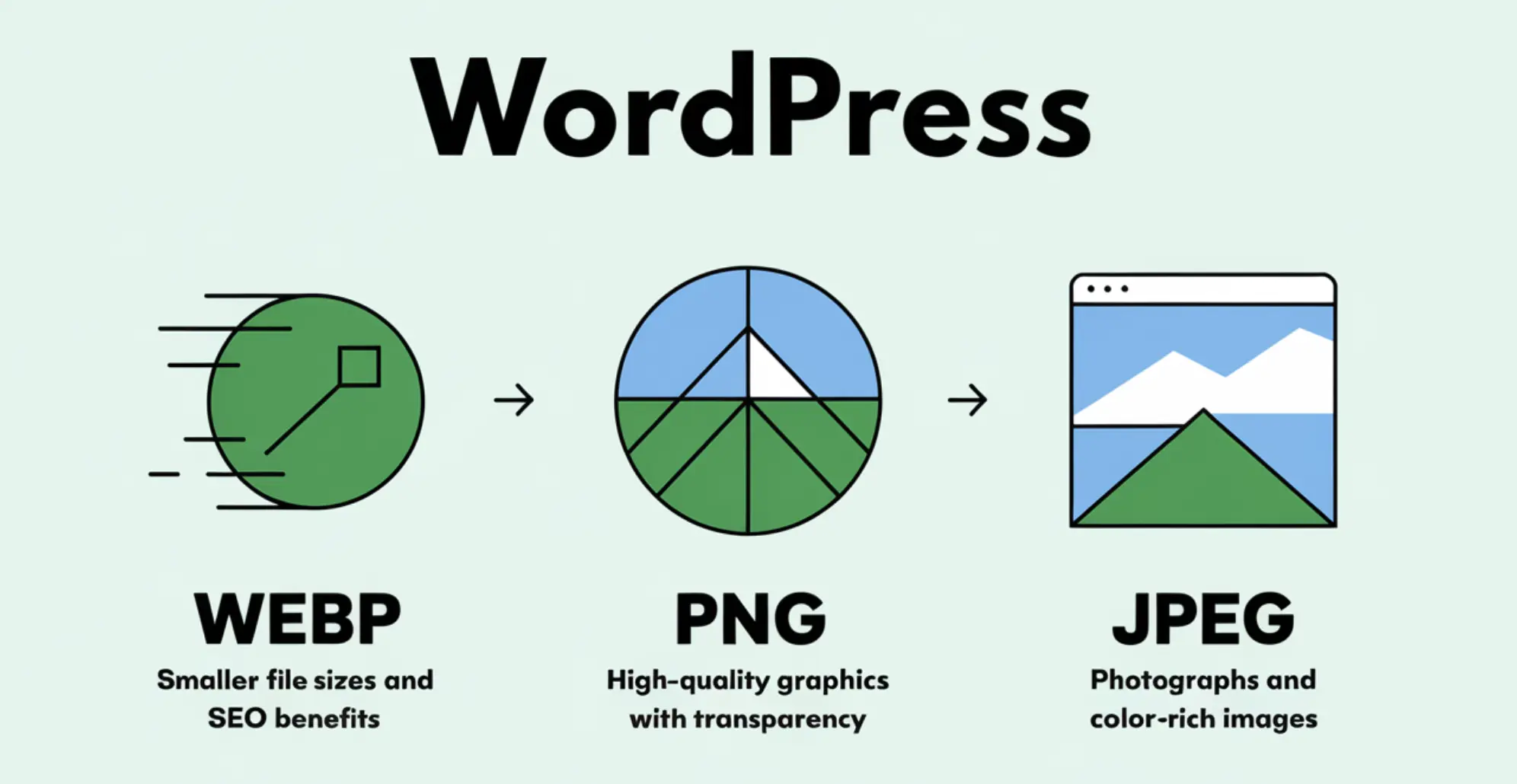
Here’s a quick comparison of the three formats:
Format Best For Compression Transparency Support File Size
WebP Modern websites, performance-focused Lossy and lossless  Yes  30% smaller than PNG/JPEG 
PNG High-quality graphics, transparency Lossless Yes Larger than WebP and JPEG
JPEG Photographs, color-rich images Lossy No Smaller than PNG, larger than WebP

4. SVG: Vector Graphics

SVG stands for Scalable Vector Graphics. It’s a format that uses XML to create images from shapes and lines.
Unlike formats like JPEG and PNG, SVGs don’t lose quality when scaled. They stay sharp no matter the size.

When to Use SVG

SVG is ideal for:
  • Logos and icons
  • Simple illustrations and diagrams
  • Images that need to be scaled without losing quality
  • Interactive graphics and animations

SVG Pros and Cons

Pros:

  • Scalable without loss of quality.
  • Small file sizes for simple graphics.
  • Can be animated and interactive.

Cons:

  • Not suitable for complex photographs.
  • Requires more processing power to render compared to raster images.
  • Can be more complex to create and edit.

5. Other Image Formats (Optional) – AVIF, GIF

While JPEG, PNG, WebP, and SVG are the most common image formats for WordPress, other formats exist.
AVIF (AV1 Image File Format) is a relatively new format that promises even better compression than WebP.
GIF (Graphics Interchange Format) is primarily used for animated images.

Choosing the Right Image Format for WordPress

Selecting the appropriate image format is crucial for optimizing your WordPress website’s performance and visual appeal.

The best format depends on the type of image, its intended use, and the desired balance between quality and file size.

Image Type vs. Use Case

Best Image Format for WordPress: JPEG Classic Format
Different image types are better suited for specific use cases.
Understanding these nuances will help you make informed decisions about which format to use for each image on your WordPress site.

Photos

For photographs, JPEG and WebP are generally the best choices. JPEG offers good compression and is widely supported, while WebP provides superior compression and quality.
When using JPEG, be mindful of the compression level to avoid excessive quality loss.
For the best results, experiment with WebP if browser compatibility isn’t a major concern.

Logos and Graphics

Logos and graphics often contain sharp lines, text, and transparency. For these types of images, PNG and SVG are the preferred formats.
PNG is great for raster-based logos and graphics. SVG is best for vector-based logos. This is because SVG logos keep their quality when scaled up.

Icons

Icons are typically small, simple graphics that need to be crisp and clear. SVG is the best format for icons because it’s scalable and maintains its quality at any size.
If you’re using raster-based icons, PNG is a better choice than JPEG due to its lossless compression.

Illustrations

The best image format for illustrations depends on the style and complexity of the artwork. For illustrations with gradients and complex colors, JPEG and WebP can be suitable.
For illustrations with sharp lines, flat colors, and text, PNG and SVG are better choices.
Consider experimenting with different formats to see which one provides the best balance of quality and file size.

Image Quality vs. File Size

A key consideration when choosing an image format is the trade-off between image quality and file size.

Lossy formats like JPEG offer smaller file sizes but can sacrifice image quality.

Lossless formats like PNG preserve image quality but result in larger file sizes.

WebP offers a good balance of both, while SVG provides scalability without quality loss.

The ideal choice depends on your specific needs and priorities.

How to Optimize Images in WordPress

Now that you know about image formats, let’s dive into optimizing images for WordPress.
These techniques will help you reduce file sizes, improve website speed, and enhance the overall user experience.
Best Image Format for WordPress: PNG for WordPress

1. Image Compression Techniques

Image compression is the process of reducing the file size of an image.
This can be achieved through various algorithms that remove redundant or unnecessary data from the image file.
There are two main types of image compression: lossy and lossless.

Lossy vs. Lossless Compression

Lossy compression reduces file size by discarding some image data. This can result in a loss of quality, especially with high compression ratios.
JPEG is a common example of a lossy format. Lossless compression, on the other hand, reduces file size without losing any data. PNG is a lossless format. WebP can be both.
The choice between lossy and lossless depends on the image type and the desired balance between quality and file size.

2. Image Resizing and Scaling

Resizing and scaling images to the appropriate dimensions for your website is another crucial optimization technique.
Uploading images that are much larger than needed wastes bandwidth and slows down page load times.
Use image editing software or WordPress plugins to resize images to the exact dimensions required for their intended display area.

3. Lazy Loading Images

Lazy loading is a technique that defers the loading of images until they are about to enter the viewport. Images below the fold are not loaded until the user scrolls down to them.
Lazy loading can significantly improve initial page load times and reduce bandwidth consumption.

4. Using a CDN for Image Delivery

A Content Delivery Network (CDN) is a network of servers all over the world. They deliver content to users based on where they are.
Using a CDN for image delivery can make your website much faster. It does this by cutting down the distance between the server and the user.
Many CDNs also offer image optimization features, such as automatic compression and format conversion.

Best WordPress Image Optimization Plugins

Fortunately, you don’t have to manually optimize every image on your WordPress website.
Several excellent plugins can automate the process, making image optimization easy and efficient.
Here are some of the best WordPress image optimization plugins:

1. Smush

Best Image Format for WordPress: Smush Plugin

Smush is a well-liked image optimization plugin for WordPress. It makes images smaller and faster to load. 

This happens automatically when you upload images to your WordPress media library.

It offers both lossy and lossless compression options and supports various image formats, including JPEG, PNG, and GIF.
Smush also includes lazy loading and CDN integration features.

2. Imagify

WordPress image optimization: Imagify Image Optimizer

Imagify is another powerful image optimization plugin that uses advanced compression algorithms to reduce image file sizes without sacrificing quality.

It offers three levels of compression: Normal, Aggressive, and Ultra. Imagify also supports WebP conversion and CDN integration.
You can optimize up to 25MB of images for free each month.

3. ShortPixel Image Optimizer

WordPress image optimization: ShortPixel Image Optimizer

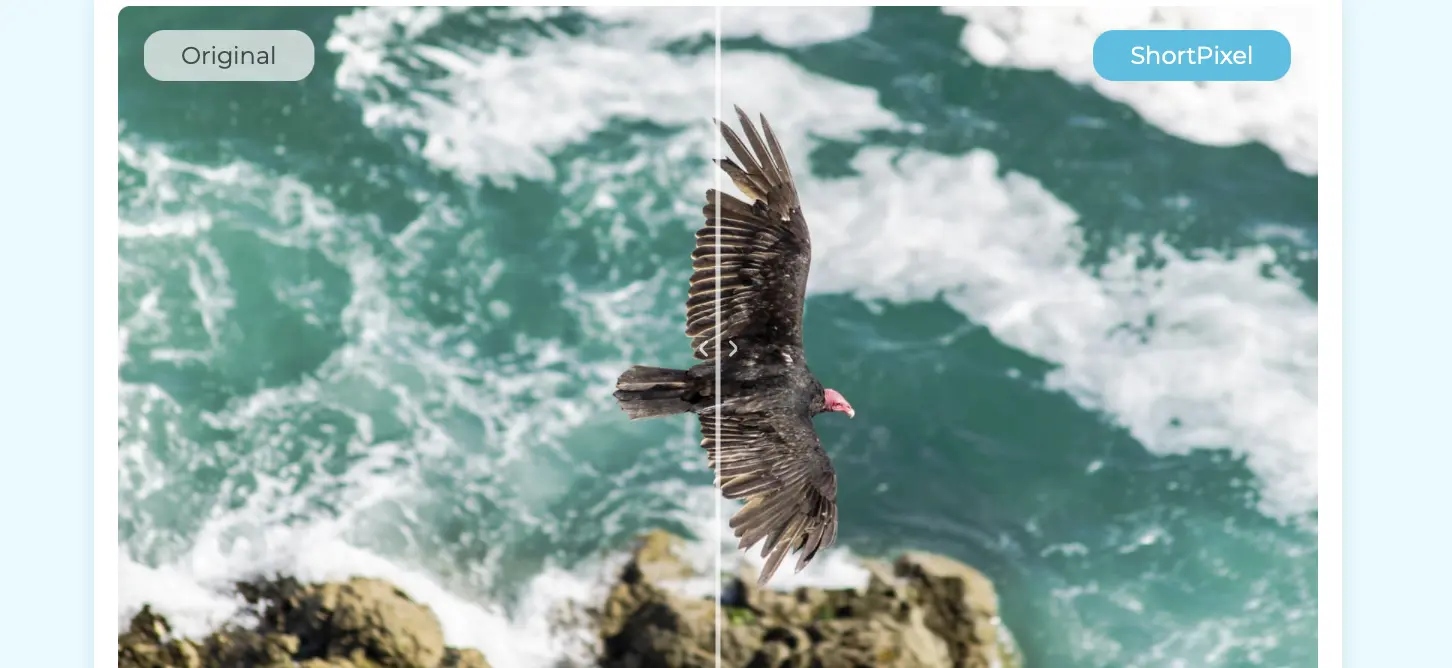
ShortPixel Image Optimizer is a feature-rich plugin that uses both lossy and lossless compression to optimize images. It supports JPEG, PNG, GIF, WebP, and PDF files.

ShortPixel also offers advanced features like automatic image resizing, WebP conversion, and CDN integration. You can optimize up to 100 images per month for free.

Comparing Plugins

Each of these plugins offers a unique set of features and benefits. Smush is a great option for beginners due to its ease of use and automatic optimization.

Imagify provides excellent compression and quality with its three levels of compression. ShortPixel offers a wide range of features and supports various file types.
Consider your specific needs and budget when choosing the best plugin for your WordPress website.

Converting Images to WebP

As we’ve discussed, WebP offers significant advantages in terms of compression and quality.
Converting your existing images to WebP can greatly improve your website’s performance.
Here’s how you can convert images to WebP:
WordPress image optimization: Which Image Format is Best for Your

Manual Conversion

You can turn images into WebP manually. There are many online tools and software like Adobe Photoshop or GIMP to help you.

These tools allow you to upload your images and convert them to WebP format.

Manual conversion lets you control the process closely. However, it can take a lot of time. This is especially true if you have many images to convert.

Using Plugins for WebP Conversion

The easiest way to convert images to WebP is by using a WordPress plugin.

Many of the image optimization plugins we discussed earlier, such as Imagify and ShortPixel, offer automatic WebP conversion.

These plugins will automatically convert your existing images to WebP and serve them to browsers that support the format.

This is the most efficient and convenient way to implement WebP on your WordPress website.

Conclusion

WordPress image optimization is an essential aspect of website performance and user experience.
Learning about image formats is key. It helps make your website faster, better for SEO, and more attractive.
Don’t underestimate the power of optimized images – they can make a world of difference!

FAQ

What is the best image format for WordPress?
The best image format depends on the type of image. JPEG and WebP are great for photographs. PNG is best for logos and graphics with transparency. SVG is perfect for icons and simple illustration
How can I compress images in WordPress?
You can compress images in WordPress using image optimization plugins like Smush, Imagify, and ShortPixel. These plugins automatically compress images as you upload them to your media library.
Is lazy loading good for SEO?
Yes, lazy loading can make your website better for SEO. It helps by making pages load faster and improving how users feel when they visit. Faster loading times are a ranking factor for search engines.

    Ognjen Velickovic

    With a focus on web development and project management, I’m driven by a passion for helping people reach their goals. I thrive on building solutions, growing through new knowledge and partnerships, and expanding by sharing what we create with a broader audience.

    You May Also Like…