TL;DR
WordPress doesn’t include dark mode by default, but you can add it three ways: a theme that already supports dark styles, manual customization through the Site Editor or Customizer, or a no-code plugin like WP Dark Mode.
Dark mode reduces eye strain, extends battery life on OLED/AMOLED screens, and can even be applied to your admin dashboard for more comfortable late-night editing.
How to Enable WordPress Dark Mode on Your Site
Did you know WordPress doesn’t have a built-in WordPress dark mode setting? This is surprising, given dark mode’s growing popularity. It’s loved for its eye-friendly interface and ability to reduce eye strain and save energy.
To add dark mode to your WordPress site, you can use theme customizations or plugins like WP Dark Mode and Droit Dark Mode. These tools are key for offering a different viewing option and keeping visitors on your site longer.
If your theme is less flexible, custom CSS might be needed. But, WordPress dark mode plugins make it easy to add the darker look many users prefer.
This can also help them stay on your site longer, while saving energy on their devices, and if you want it implemented cleanly without breaking your existing theme, it’s exactly the kind of detail we handle as part of every WordPress development project.

Understanding the Benefits and Basics of WordPress Dark Mode
- OLED/AMOLED screens (most modern smartphones): noticeable battery savings in dark mode.
- Older LCD screens: little to no battery difference, since the backlight runs constantly either way.
Customizing Dark Mode Settings Using WordPress Themes
Using Built-in Dark Mode Styles in Site Editor
Accessing Styles and Colors for Advanced Customization
Adjusting Theme Colors via the WordPress Customizer
If your theme uses the WordPress Customizer, go to Appearance > Customize. Then, select ‘Colors‘ or ‘Colors & Backgrounds‘. Here, you can change the site’s background and text colors to fit dark mode.
If you need more specific changes, consider adding custom CSS. You might need a designer’s help to make sure it works well and doesn’t break your site.
Add Dark Mode to WordPress Site With Plugins
Adding dark mode to your WordPress site can make it better for users. It’s great for those who like a darker screen to ease eye strain or for looks. With a dark mode for WordPress plugin like WP Dark Mode, you can do this easily without coding.
Just keep in mind that any new plugin adds another moving part to keep updated and compatible, something our WordPress maintenance plans monitor for you automatically.
Popular Dark Mode Plugins for WordPress
1. WP Dark Mode: This plugin has both free and premium versions. It offers toggles, custom designs, and can work with different operating systems.

2. Darklup Lite: It has responsive toggles and customization options. It’s great for a sleek dark mode look.
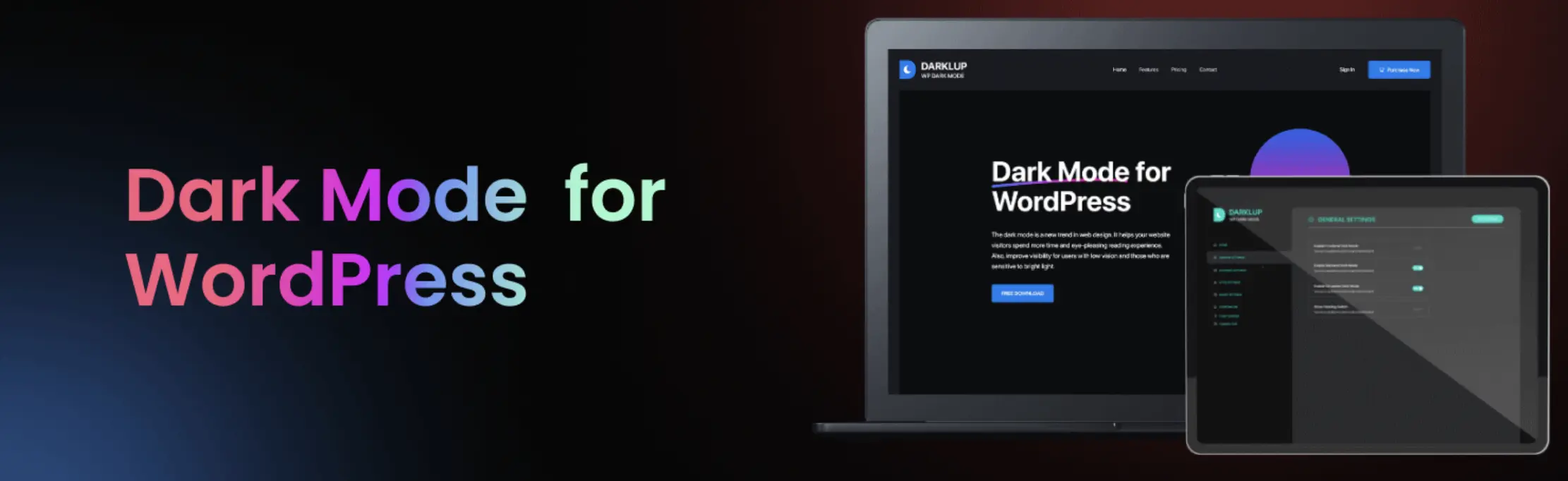
3. Dark Mode Toggle: It gives site visitors simple toggle options. This makes switching to dark mode easy.

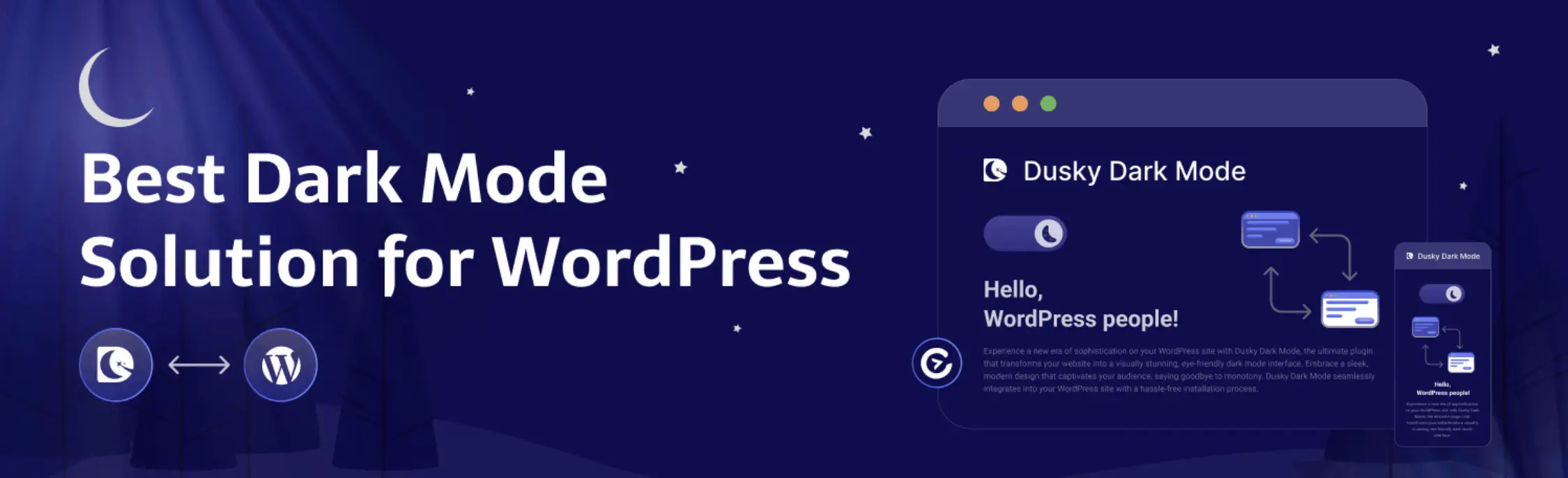
4. Dusky Dark Mode: This plugin has advanced dark mode features. It also improves accessibility settings.
Why WP Dark Mode Stands Out
- Easy Installation and Setup: WP Dark Mode is free in the WordPress Plugin Directory. After installation, activating dark mode in WordPress is just a click away.
- User-Friendly Toggle: The WordPress dark mode toggle lets visitors switch modes easily. This makes navigating your site better. You can place the toggle anywhere on your pages.
- OS-Based Activation: WP Dark Mode can detect your system settings. It then uses dark or light mode based on your preference. This fits well with today’s device use.
- Customizable Designs: You can make dark mode fit your brand’s style. WP Dark Mode lets you change colors. This keeps everything looking good and easy to read.
Premium WP Dark Mode features add more color options, customization, and unique switch styles. These upgrades can make your dark mode on WordPress site look even better.

Incorporating Dark Mode in the WordPress Admin Dashboard
Installing Necessary Plugins for Admin Dark Mode
Enhancing Your Dashboard for Night-time Management
Once you’ve installed the WP Dark Mode plugin, go to your WordPress admin dashboard. Then, visit the WP Dark Mode settings. Here, you can turn on dark mode with just a click. The ‘Show Floating Switch‘ feature lets you easily switch between dark and light themes.
Customizing Admin Color Schemes for Dark Mode
After enabling dark mode, you can customize your admin dashboard further. Go to Users > Profile to pick a color scheme that matches your dark mode. This makes your backend look and feel more personal, helping you work better without eye strain.

Conclusion
WordPress doesn’t have dark mode built-in, but plugins like WP Dark Mode and themes like Kadence can help. These tools make it easy to add dark mode to your site.
By adding dark mode to your WordPress site, you meet your users’ changing needs and keep them engaged. The WP Dark Mode plugin is a great choice, offering features like Enable OS aware Dark Mode and Show Floating Switch. It lets users choose how they want to see your site.
Adding dark mode to your WordPress site is more than just a style choice. It’s a smart move that fits with today’s online habits and what users expect. If you want it designed to match your brand’s existing look and feel rather than a generic plugin default, our UX/UI design team can build it into your site properly.