TL;DR
The best design software depends on what you’re creating. Adobe Photoshop is a strong choice for photo editing, Illustrator for logos and vector graphics, and Figma for collaborative UI/UX design. Canva works well for quick marketing visuals, while the new Affinity offers free professional vector, photo, and layout tools. For 3D modeling and animation, Blender is a capable free option. Compare features, platform compatibility, pricing, and collaboration needs before choosing.
Best Design Software at a Glance
Use this comparison to narrow down your options before exploring each tool in detail.
| Design software | Best for | Platforms | Pricing model |
|---|---|---|---|
| Adobe Photoshop | Photo editing, compositing, raster graphics | Windows, macOS, web, mobile | Subscription |
| Adobe Illustrator | Logo design, vector illustration, typography | Windows, macOS, iPad | Subscription |
| Adobe InDesign | Brochures, magazines, editorial layouts | Windows, macOS | Subscription |
| Figma | UI/UX design, prototyping, team collaboration | Web, Windows, macOS | Free plan + paid plans |
| Sketch | Interface design and prototyping | macOS app, web collaboration | Subscription or one-time license |
| Affinity | Vector graphics, photo editing, page layout | Windows, macOS | Free core app; optional paid AI features |
| CorelDRAW | Vector graphics, print production, illustration | Windows, macOS | Subscription or one-time purchase |
| Canva | Social media graphics, presentations, quick marketing designs | Web, desktop, mobile | Free plan + paid plans |
| Blender | 3D modeling, animation, rendering | Windows, macOS, Linux | Free and open source |
| Procreate | Digital painting and illustration | iPad | One-time purchase |
Quick recommendation: Start with the type of work you do most often. Figma or Sketch may fit interface design, Photoshop and Illustrator serve different parts of a graphic design workflow, and Canva is often more practical for quick template-based content. For free professional desktop design tools, Affinity is worth considering, while Blender and Procreate serve more specialized creative needs.
Pricing models and platform availability checked in October 2026. Plans, regional availability, and supported devices may change.
Best Design Software for Different Creative Tasks
1. Adobe Photoshop — Best for Photo Editing and Raster Graphics

Key strengths
- Detailed photo retouching and image manipulation.
- Layer-based editing, masking, and compositing.
- AI-assisted object removal, background replacement, and image expansion.
Limitations
- Subscription-based pricing.
- A learning curve for users who only need simple graphics.
- Raster artwork can lose sharpness when enlarged beyond its available resolution.
Best for: Photographers, digital artists, marketing designers, and teams preparing image-heavy creative assets.
When to choose something else: If you’re designing a logo that needs to scale from a business card to a billboard, a vector editor such as Illustrator is generally a better starting point.
Pricing: Adobe Photoshop is available through a subscription. Check the official Photoshop page for current plans and regional pricing.
2. Adobe Illustrator — Best for Logos and Vector Design

Key strengths
- Scalable vector artwork without resolution loss.
- Precise control over shapes, paths, typography, and colors.
- Suitable for brand identity assets used across print and digital applications.
Limitations
- Subscription-based pricing.
- More complex than necessary for quick template-based marketing graphics.
- Not the primary choice for detailed photographic retouching.
Best for: Brand identity designers, illustrators, logo designers, and creatives producing scalable visual assets.
When to choose something else: Use Photoshop when the project depends primarily on photographic editing. For collaborative interface design and interactive prototypes, Figma is usually a more relevant option.
Pricing: Illustrator is available through Adobe Creative Cloud subscriptions. See the official Illustrator page for current plans.
3. Adobe InDesign — Best for Editorial and Print Layouts
Unlike Photoshop or Illustrator, InDesign is built around organizing content across pages, maintaining consistent styles, and preparing documents for publication.

Key strengths
- Precise typography, grids, and multi-page layouts.
- Paragraph styles, master layouts, and reusable design elements.
- Professional PDF export, print preparation, and digital publishing options.
Limitations
- Subscription-based pricing.
- Not designed for detailed photo editing or complex vector illustration.
- More setup and learning than necessary for simple one-page graphics.
Best for: Editorial designers, publishing teams, and businesses producing brochures, catalogs, or other multi-page materials.
When to choose something else: Illustrator is better suited to creating individual vector illustrations and logos. For quick social media graphics, Canva may be more practical.
Pricing: InDesign is available as an individual Adobe subscription or through Creative Cloud bundles. Check the official InDesign plans for current pricing.
4. Figma — Best for UI/UX Design and Team Collaboration

Key strengths
- Collaborative interface design with shared files and feedback.
- Reusable components and design systems for consistent interfaces.
- Interactive prototypes for exploring user flows before development.
- Developer handoff and design inspection capabilities, including Dev Mode on eligible paid plans.
Limitations
- Advanced collaboration, design system management, and developer features depend on the plan and seat type.
- Requires a different workflow from traditional print and illustration software.
- Complex projects need consistent file organization and component management to remain manageable.
Best for: UI/UX designers, web design teams, product designers, and organizations building interfaces collaboratively.
When to choose something else: Illustrator is generally a better choice for standalone vector branding assets, while InDesign is more suitable for multi-page print publications. Sketch may appeal to designers who prefer a native macOS workflow.
Pricing: Figma offers a free Starter plan and paid plans with different seat types. Review the official Figma pricing before choosing a plan, particularly if your team needs Dev Mode or multiple editors.
5. Sketch — Best for Native macOS Interface Design
Sketch is particularly worth considering for designers who prefer a desktop-based workflow and want dedicated tools for interface design, prototyping, and developer handoff.

Key strengths
- Native macOS interface for designing and prototyping.
- Reusable components, shared libraries, and design systems.
- Browser-based design reviews, commenting, and developer inspection.
- Real-time collaboration through the Mac app on supported subscription plans.
- Creating and editing designs requires a Mac.
- The browser app supports viewing and feedback, but not full design editing.
- A standalone Mac license does not include the collaborative Workspace features available with subscriptions.
Best for: Mac-based UI/UX designers, product design teams, and freelancers who prefer native desktop software.
When to choose something else: Figma may be more practical when designers work across Windows and macOS. For logos, illustrations, or print-focused projects, a dedicated vector or layout application may be a better fit.
Pricing: Sketch offers subscriptions and a one-time Mac-only license. The standalone license includes one year of updates but excludes cloud collaboration features. Compare the options on the official Sketch pricing page.
6. Affinity — Best Free Professional Design Suite
Key strengths
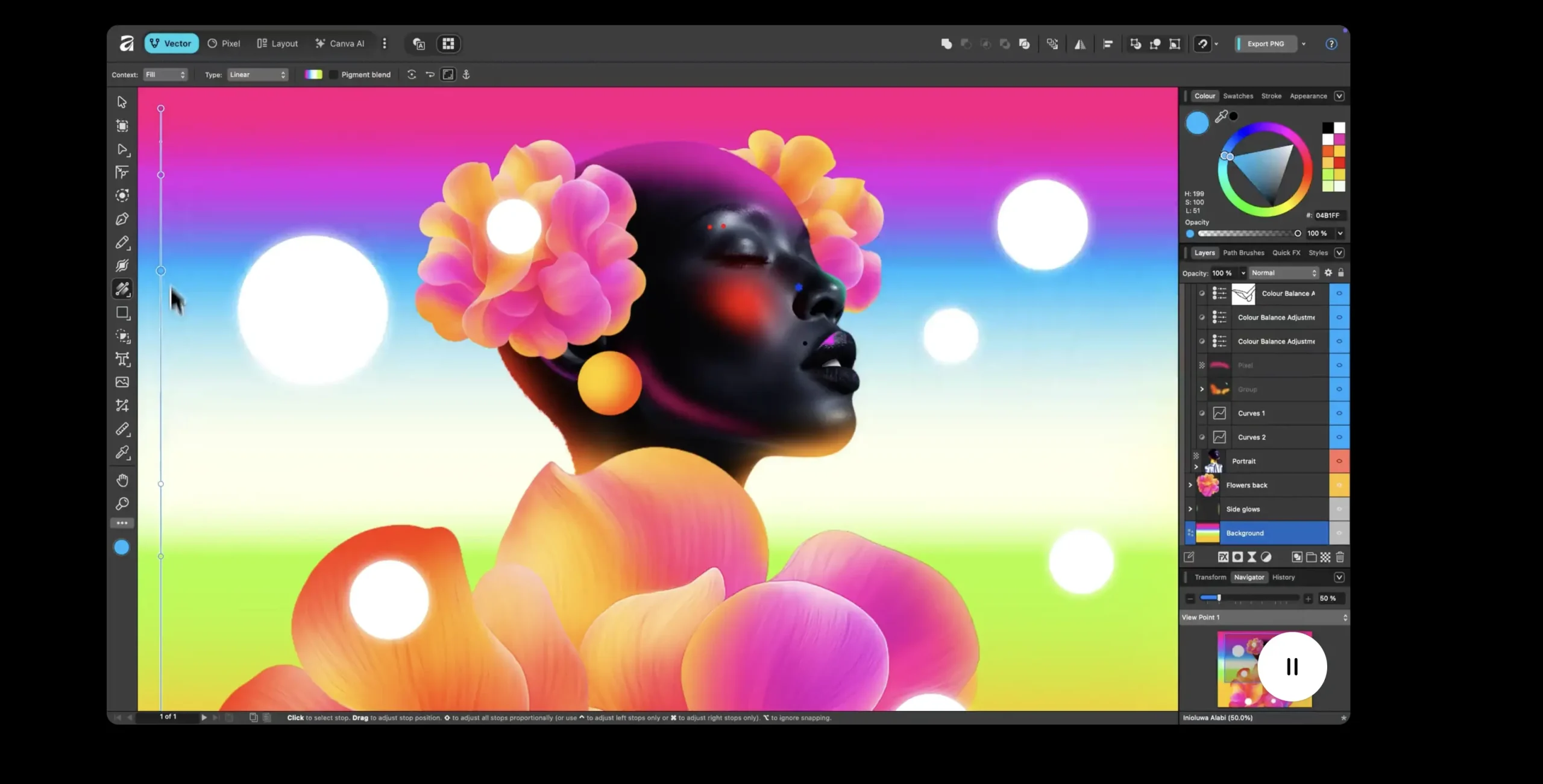
- Professional vector, pixel, and page layout tools in one application.
- Free access to core editing, customization, and export features.
- Non-destructive editing for making changes without permanently altering original artwork.
- A customizable workspace that can combine tools for different creative tasks.
Limitations
- A free Canva account is required to access the application.
- Integrated Canva AI tools require an eligible premium Canva plan.
- Teams that rely on Adobe-specific workflows should check file compatibility and handoff requirements before switching.
Best for: Freelance designers, small businesses, students, and creatives who need professional graphic design, photo editing, and publication layout tools without a recurring software subscription.
When to choose something else: Figma or Sketch may be more suitable for collaborative UI/UX workflows. Adobe applications may remain preferable when clients, production partners, or established workflows depend on particular Adobe features and file formats.
Pricing: Affinity’s core desktop application is free. Optional Canva AI capabilities require an eligible premium plan. Download the software or check current requirements on the official Affinity website.
7. CorelDRAW — Best for Vector Graphics and Print Production
Key strengths
- Precise vector drawing and editing tools.
- Multi-page layouts, typography, and print-oriented design features.
- Broad file format support for working with different production workflows.
- Integrated photo editing through Corel PHOTO-PAINT.
Limitations
- More complex than necessary for simple social media graphics.
- Some cloud features and updates depend on the license type.
- Teams working with Adobe-based production partners should confirm file compatibility before committing to a workflow.
Best for: Graphic designers, print production professionals, signage businesses, and creatives producing scalable artwork for physical and digital applications.
When to choose something else: Illustrator is another strong option for professional vector design, particularly in Adobe-centered workflows. Canva is generally easier for quickly creating template-based marketing materials.
Pricing: CorelDRAW Graphics Suite is available through subscription and one-time purchase options. These differ in ongoing updates, cloud access, and included features. Compare them on the official CorelDRAW website.
8. Canva — Best for Quick Marketing and Social Media Design

Key strengths
- Large selection of customizable templates and design assets.
- Simple editing tools for social media posts, presentations, and marketing graphics.
- Browser-based collaboration, commenting, and sharing.
- Brand Kits and additional brand management features, depending on the plan.
- Built-in image editing, background removal, and AI-assisted tools, with availability varying by plan.
Limitations
- Less suitable for detailed vector illustration or highly specialized production workflows.
- Premium templates, assets, and advanced features may require a paid plan.
- Template-based designs can appear generic without thoughtful customization.
- Teams preparing print materials should verify export settings, color requirements, and printer specifications.
Best for: Small businesses, marketers, social media managers, educators, and teams producing frequent visual content.
When to choose something else: Illustrator or CorelDRAW may be more appropriate for detailed vector artwork and specialized print production. Figma is better suited to complex interface design and interactive prototypes.
Pricing: Canva offers a free plan alongside paid Pro, Business, and Enterprise options. Plans differ in premium content, storage, AI allowances, and brand management capabilities. Compare them on the official Canva pricing page.
9. Blender — Best Free Software for 3D Modeling and Animation

Key strengths
- Comprehensive 3D modeling, sculpting, and animation tools.
- Built-in rendering with Cycles and Eevee.
- Support for simulations, visual effects, and compositing.
- Free and open source, with no subscription or license fees.
Limitations
- A steep learning curve for beginners unfamiliar with 3D workflows.
- Complex scenes and high-quality rendering can require powerful hardware.
- Not intended for everyday graphic design tasks such as brochures, logos, or social media templates.
Best for: 3D artists, animators, game designers, product visualization specialists, and creatives who need professional 3D capabilities without software licensing costs.
When to choose something else: If you’re primarily editing photographs or creating marketing materials, Photoshop or Canva will usually be more practical. For 2D illustration, Illustrator, Affinity, or Procreate may be better suited to the task.
Pricing: Blender is completely free and open source. Download it and check system requirements on the official Blender website.
10. Procreate — Best for Digital Drawing and Illustration on iPad
Key strengths
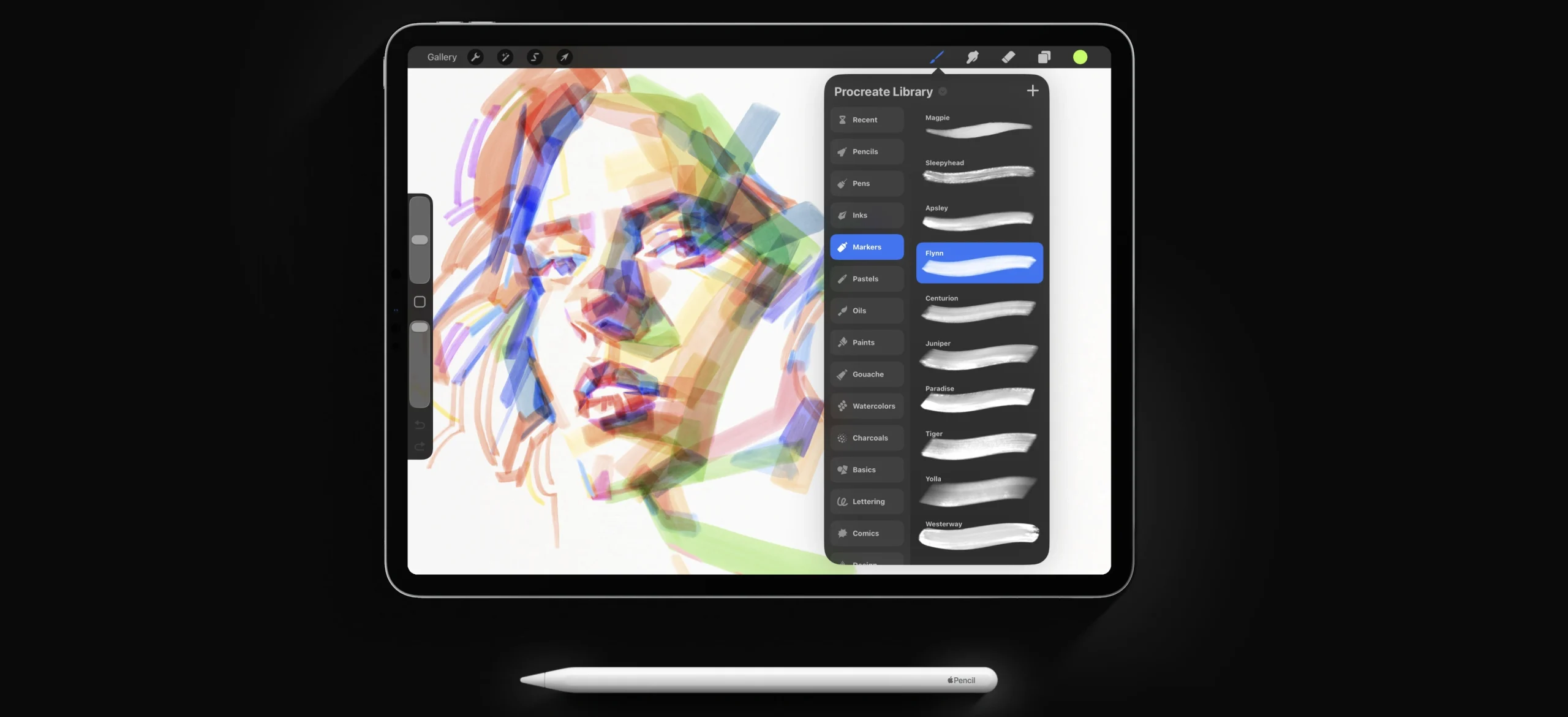
- Extensive collection of customizable brushes for drawing and painting.
- Apple Pencil support with pressure-sensitive brush controls.
- Layers, masks, blending modes, and drawing assistance tools.
- Time-lapse recording and export options for sharing artwork.
- One-time purchase without a subscription.
Limitations
- Available only on compatible iPads.
- Primarily designed for raster artwork rather than fully editable vector graphics.
- Less suitable for complex page layouts, collaborative interface design, or production workflows that require desktop-specific applications.
Best for: Digital illustrators, concept artists, character designers, and creatives who prefer drawing directly on a tablet.
When to choose something else: Illustrator or Affinity may be better for scalable vector logos and brand assets. Figma is more appropriate for collaborative UI/UX design, while Blender is designed for full 3D modeling and animation workflows.
Pricing: Procreate is available as a one-time purchase through the App Store. Pricing varies by region; check the official Procreate website for the latest information.
How to Choose the Right Design Software
1. Start with your primary design tasks
2. Check compatibility and file requirements
3. Consider collaboration and learning time
4. Compare the total cost, not just the advertised price
A practical approach: Shortlist two or three tools, then complete a small, representative project in each one. Compare the quality of the result, ease of use, export options, and time required. A realistic workflow test will tell you more than a feature list alone.