TL;DR
- What TTFB actually measures, and the realistic thresholds to aim for
- Hosting, theme, caching, and database fixes that move the needle most
- Advanced techniques (CDN, image optimization, plugin cleanup) once the fundamentals are solid
Reduce WordPress Server Response Time: A Complete Guide
This guide walks through proven techniques to meaningfully improve your WordPress site’s performance, starting with the foundation everything else builds on: server response time.
Why it matters?
- User Experience: Visitors don’t wait. A slow site means higher bounce rates and less engagement, full stop.
- SEO: Page speed is a Google ranking factor. Server response time specifically cascades into Largest Contentful Paint (LCP) – the browser literally can’t start rendering your page until it receives the first byte from your server.
- Conversions: Whether you’re selling products or generating leads, a faster site translates directly to more completed actions.
- Mobile Experience: Mobile visitors are even less patient than desktop, and now make up the majority of web traffic, so this isn’t a secondary concern anymore.
1. Understanding WordPress Server Response Time (TTFB)
What is Server Response Time (TTFB)?

What counts as good in 2026: Google’s official guidance (updated November 2025) sets the “good” TTFB threshold at 800ms or less, measured at the 75th percentile of real visits.
Lighthouse’s lab-based audit uses a stricter 600ms cutoff for its specific “reduce initial server response time” check. For WordPress specifically, competitive real-world performance benchmarks suggest aiming well below the passing threshold – 100-200ms – since that’s genuinely achievable with decent hosting and gives you headroom before Core Web Vitals issues start compounding.
| Response Time | Rating |
| Under 200ms | Excellent (competitive WordPress benchmark) |
| 200-800ms | Passes Google’s official threshold |
| 800ms-1.8s | Needs improvement |
| Over 1.8s | Poor |
Factors That Affect WordPress Server Response Time
- Hosting: Arguably the single biggest factor. Shared hosting, where your site splits resources with many others – is the most common cause of slow TTFB.
- WordPress Theme: A bloated, poorly coded theme with excessive features strains your server on every request.
- WordPress Plugins: Too many plugins, or a few poorly coded ones, add real overhead.
- Database: A bloated database (old revisions, spam comments, unused data) slows every query.
- Lack of Caching: Without caching, your server rebuilds every page from scratch, for every visitor, every time.
- CDN: Distributing content across servers closer to visitors cuts latency, especially for a geographically spread audience.
- Image Size: Large, unoptimized images add real load, even though this affects overall page load more than TTFB specifically.
- PHP Version: Running an outdated PHP version measurably slows response time, each new release includes real performance improvements.
How to Test Your WordPress Server Response Time
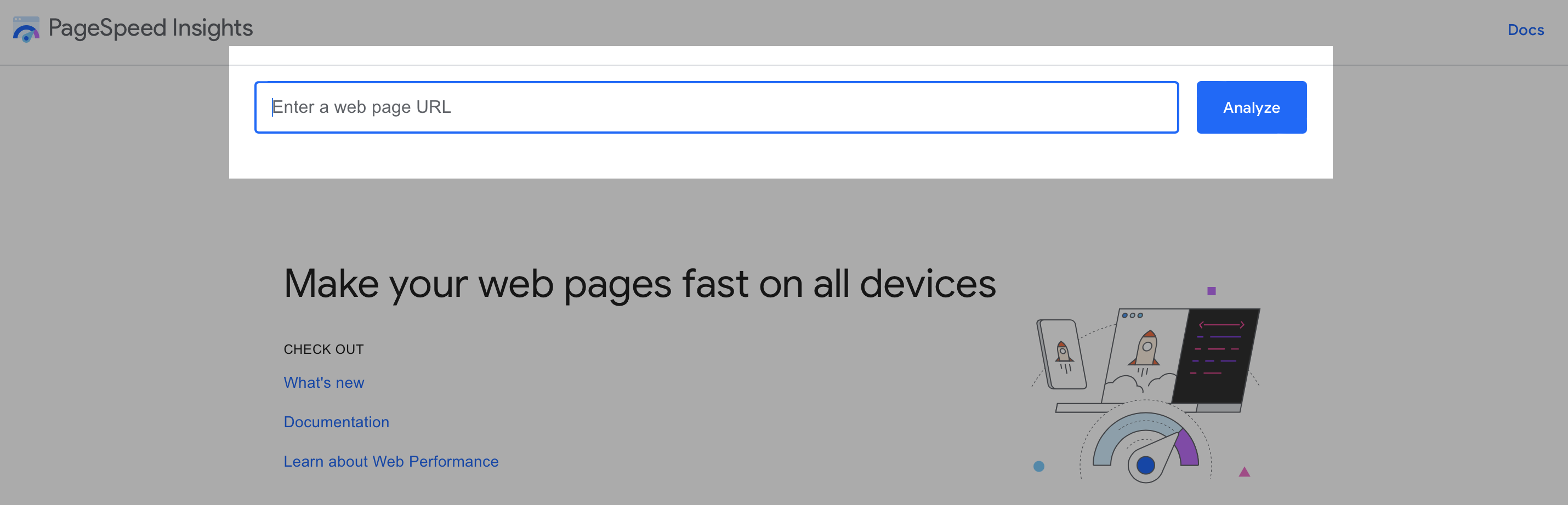
GTmetrix: Go to GTmetrix.com, enter your URL, pick a test location close to your audience, and check the TTFB metric in the results.

WebPageTest: Go to WebPageTest.org, enter your URL, select a location and browser, and check “First Byte” in the results.
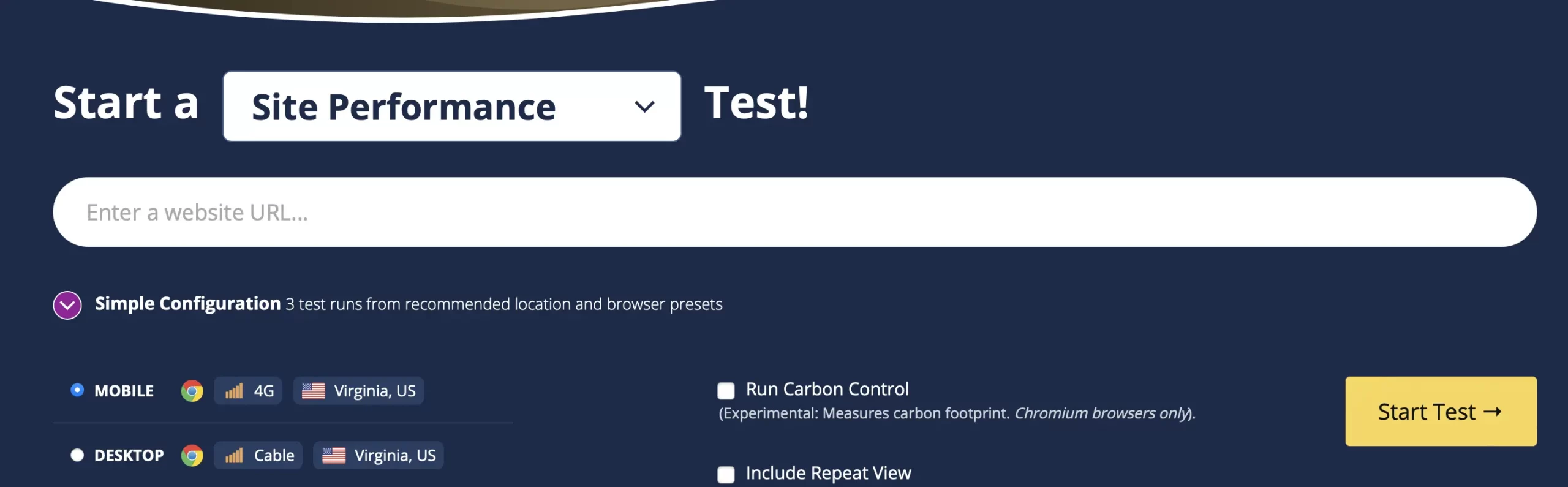
Google PageSpeed Insights: Go to PageSpeed Insights, analyze your URL, and look for the “Reduce initial server response time” flag if it appears.
Uptrends also offers a dedicated TTFB test if you want a second data point.
2. Choosing the Right WordPress Hosting

Why Hosting Matters for Server Response Time?
- Server Resources: Your plan determines CPU, RAM, and storage. Sharing those resources with too many other sites causes real contention, this is the core problem with cheap shared hosting.
- Server Location: Physical distance to your audience affects data transfer speed directly. If your audience is in the US, host on US-based servers.
- Server Configuration: SSDs, caching mechanisms, and optimized database configuration all factor into raw performance.
- Network Infrastructure: A well-architected network means faster, smoother data transfer between your server and visitors.
Types of Hosting
- Shared Hosting: The most affordable option, your site shares resources with many others. Fine for small, low-traffic sites; expect slower response times and issues during traffic spikes on anything performance-critical.
- VPS Hosting: A virtualized environment with dedicated resources and more control than shared hosting. Good for sites with moderate, growing traffic.
- Dedicated Server Hosting: An entire server dedicated to your site, maximum performance, control, and security. Built for large, high-traffic sites that genuinely need it.
- Managed WordPress Hosting: WordPress-specific optimization, automatic updates, security scans, caching, and staging environments built in. The right choice if you want a hands-off approach and experts handling the technical layer.
Recommendations for Fast WordPress Hosting
- SiteGround: Solid managed WordPress hosting with servers in multiple regions. Intro pricing runs $2.99-4.99/month, but renewal jumps significantly to roughly $18-30/month, factor that into your real annual cost before committing.
- WP Engine: Premium managed hosting built specifically for WordPress, from $30-35/month. Strong agency tooling and the only major option here with phone support.
- Kinsta: Runs on Google Cloud Platform’s compute-optimized infrastructure, from $35/month. Consistently benchmarks at the top of independent speed tests, the premium is real, but so is the performance.
- Cloudways: Managed cloud hosting letting you pick your underlying provider (DigitalOcean, Vultr, AWS, Google Cloud), from $11-14/month pay-as-you-go. One thing worth knowing: Cloudways doesn’t handle automatic updates the way Kinsta or WP Engine do, a reasonable tradeoff for the lower price if you’re comfortable managing that yourself.
3. Optimizing Your WordPress Theme

How Your Theme Impacts Speed
Here’s how your theme can affect server response time:
- Code Quality: Inefficient code slows your server down on every single request, no exceptions.
- Bloated Features: Sliders, animations, and built-in social widgets you don’t need are extra work your server does on every page load.
- Large Images: Themes that ship with unoptimized demo images carry that weight into your actual site if you’re not careful.
- Plugin Dependencies: Some themes lean on a stack of required plugins just to function properly, more moving parts, more potential slowdown.
Choosing a Lightweight, Optimized Theme

- Lightweight codebase – clean, efficient, no unnecessary bulk
- Minimal built-in features – skip anything you won’t actually use
- Responsive design – genuinely mobile-friendly, not just technically “responsive”
- Active update history – a theme with a track record of regular updates catches security issues and stays compatible with the latest WordPress version
For a deeper comparison of performance-focused theme options, including which ones we recommend for speed specifically, see our guide to the best paid WordPress themes.
Popular lightweight, speed-focused choices: Astra, GeneratePress, OceanWP, and Neve – all confirmed still actively maintained and genuinely lightweight as of 2026.
Optimizing Theme Code and Assets
- Minify CSS, HTML, and JavaScript – removes unnecessary characters and whitespace, reducing file size.
- Combine CSS and JavaScript files where practical – fewer files means fewer HTTP requests.
- Optimize and lazy-load images – covered in more depth in the image optimization section below.
Best Practices for Theme Customization
- Always use a child theme when customizing – protects your changes from being wiped out by theme updates.
- Avoid excessive plugins – install only what’s genuinely necessary.
- Test after every change – confirm your site didn’t get slower before moving on.
- Use a staging environment – test changes there before pushing to production.
4. WordPress Caching Plugins: The Key to Speed
Caching is one of the highest-impact, lowest-effort ways to speed up a WordPress site. Instead of rebuilding a page from scratch, running PHP, querying the database – on every single visit, your server serves a pre-built version instantly.
What Is Caching and How Does It Work?
Think of it like meal-prepping: instead of cooking a dish from raw ingredients every time someone orders it, you pre-make it once and serve it fast on demand. Caching does the same thing for your pages.
Types of Caching
- Browser Caching: Visitors’ browsers store static assets (images, CSS) locally, so repeat visits and page navigation don’t re-download them.
- Server-Side Caching: Your server stores a ready-made version of a page and serves that instead of generating it fresh each time. This includes:
-
- Page Caching: Stores the entire HTML output of a page.
-
- Object Caching: Stores the results of database queries, cutting database load, especially valuable for dynamic, database-heavy sites.
- CDN Caching: If you use a CDN (covered in the next section), it caches your content across its own servers, reducing load on your origin server entirely.
Best WordPress Caching Plugins in 2026
- WP Rocket (Premium, $59/year+) – the caching plugin we actually use on client sites. Works well with minimal configuration out of the box, which matters more than a longer feature list for most site owners. The only major premium-only option in this category, you’re paying specifically for not having to become a caching expert yourself.
- W3 Total Cache (Free/Premium) – the most configurable option, with over 1 million active installs. That configurability is also the catch: the settings page has 16 tabs, which is a genuine usability barrier if you don’t already know what Redis or Memcached are. Best suited to technically comfortable users who want granular control, not a “set and forget” solution.
- LiteSpeed Cache (Free) – excellent, but only if your host actually runs a LiteSpeed web server. On standard Apache hosting (most shared cPanel setups), it falls back to application-level caching and loses its main performance advantage. Check your server type before choosing this one specifically for that reason.
- WP Super Cache (Free) — simple, reliable, actively maintained by Automattic. Converts dynamic pages into static HTML. A genuinely reasonable choice for a smaller site or a tighter budget.
Configuring Your Caching Plugin for Optimal Performance
- Enable page caching first – this is the single most impactful setting, regardless of which plugin you choose.
- Enable browser caching so repeat visitors load your static assets from their own device.
- Configure CDN integration if you’re using one (next section).
- Set sensible cache expiration times based on how often your content actually changes.
- Use preloading if your plugin supports it – builds the cache ahead of time so first-time visitors aren’t the ones waiting.
- Test after configuring – confirm your changes actually improved load time, not just that the settings saved successfully.
5. Optimizing Your WordPress Database
Your database accumulates unnecessary data over time – old revisions, spam comments, expired transients, and a bloated database means slower queries and a slower site. Cleaning it is an often-overlooked but genuinely impactful step.
One thing worth doing before any of this: back up your site first. Database cleanup operations are permanent, if something goes wrong, a backup is your only way back.
Why Database Optimization Matters
- Slower Server Response Times: Excess data makes every query work harder.
- Increased Server Load: A bloated database strains your server resources generally, not just on database-heavy pages.
- Higher Bounce Rates: Slower loading, predictably, means more visitors leaving before the page finishes.
Cleaning Up Your WordPress Database
- Delete spam comments regularly – they clutter the database for no benefit.
- Limit or remove post revisions – helpful for recovering lost content, but they add up fast if left unmanaged.
- Empty the trash to permanently remove trashed posts, pages, and comments still sitting in your database.
- Remove unused plugins and themes – deactivating isn’t enough; delete anything you’re genuinely not using.
Using Database Optimization Plugins

- WP-Optimize – the strongest all-in-one pick, now combining database cleanup with caching and image compression in one plugin. If you’d rather have one tool doing more, start here.
- Advanced Database Cleaner – finds and removes unused data (orphaned metadata, expired transients, abandoned cron jobs) with more granular control and scheduled automatic cleanups. Free, with a premium version from $39/site.
- WP-Sweep – the simplest, safest option: uses WordPress’s own native delete functions rather than direct SQL queries, which makes it lower-risk than alternatives. A good fit if you want cleanup without needing to understand what’s happening under the hood.
You can also optimize database tables directly via phpMyAdmin if you’re comfortable working at that level, most site owners are better served by one of the plugins above.
6. Implementing a CDN
What Is a CDN and How Does It Work?
A Content Delivery Network is a network of servers positioned around the world that stores cached copies of your site’s static content, images, CSS, JavaScript. When a visitor requests your page, the CDN checks whether it has a cached version nearby and serves it directly from the closest server, rather than routing every request back to your origin server.

Benefits of Using a CDN for WordPress
- Improved Performance: Content served from a server near the visitor loads faster, full stop.
- Reduced Server Load: Your origin server handles fewer requests directly, freeing it up for the dynamic work only it can do.
- Increased Reliability: Distributing content across multiple servers means one server going down doesn’t take your whole site offline.
- Improved SEO: Faster loading directly affects Core Web Vitals and TTFB, both of which factor into Google ranking, and a CDN even helps Google’s own crawlers index new content faster in different regions.
- Enhanced Security: Many CDN providers bundle DDoS protection and a web application firewall on top of the speed benefit.
Popular CDN Providers for WordPress in 2026
- Cloudflare: The easiest starting point for most sites, a genuinely capable free plan, no technical configuration beyond pointing your domain’s nameservers, and unmetered DDoS protection included even for free.
- Bunny.net (formerly BunnyCDN): The better long-term pick if you want stronger real-world performance and don’t mind paying a small usage-based fee — $0.01/GB in North America and Europe, 119 global edge locations, and a dedicated WordPress plugin. For a typical small business site, that works out to roughly $1-9/month.
- Sucuri: Primarily a security company — their CDN comes bundled with firewall and malware scanning rather than sold on its own. Makes sense if security monitoring is your priority alongside speed; as a pure CDN play, it’s meaningfully more expensive than Cloudflare or Bunny.net.
Integrating Your CDN with WordPress
1. Sign up with your chosen CDN provider.
2. Configure your CDN settings – typically pointing your domain’s nameservers to the CDN.
3. Install a CDN plugin if your provider offers one (Cloudflare and Bunny.net both do), or configure integration through your caching plugin.
4. Connect the plugin to your CDN account and specify which files it should serve.
5. Verify it’s working – open your site in an incognito browser, inspect a static file (image or CSS) in dev tools, and confirm the response headers show your CDN (e.g., cf-cache-status: HIT for Cloudflare).
7. Image Optimization Techniques
Why Image Optimization Is Crucial
- Increase page loading times – more data to download before the page is usable.
- Consume more bandwidth, which can increase hosting costs on usage-based plans.
- Hurt SEO – Google factors page speed into rankings, and images are usually the biggest lever.
- Frustrate visitors waiting for images to load, increasing bounce rates.
Choosing the Right Image Format in 2026
- JPEG: Still solid for photos with complex colors. Lossy compression, smaller than PNG.
- PNG: Best for images needing sharp lines, text, or transparency. Lossless, but larger file sizes.
- WebP: Now has near-universal browser support (98%+) – the “not all browsers support it” caveat that used to apply no longer really does.
- AVIF: The newer standard worth knowing about – files 20-50% smaller than WebP at comparable quality, now supported by 94-95%+ of browsers, with native upload support built into WordPress 6.5+. The current best-practice approach: serve AVIF as the primary format with WebP as a fallback for the small remaining gap in support.
Compressing Images Without Losing Quality
- Online compressors: TinyPNG, ImageOptim, and similar tools work fine for occasional manual compression.
- Desktop editors: Photoshop and GIMP both include compression options if you’re editing images before upload anyway.
- WordPress plugins: The most practical option for ongoing, automatic optimization — covered below.
Best Image Optimization Plugins in 2026
1. ShortPixel – the strongest all-round pick for most sites: solid compression, local WebP and AVIF generation on paid tiers, and a free tier covering 100 images/month. Paid plans start around $3.99/month, credit-based rather than a flat monthly cap.
2. Smush – the simplest, least intimidating option, and the free tier no longer caps bulk optimization the way it used to. The tradeoff: WebP and AVIF conversion are now Pro-only ($36-120/year depending on site count), so the genuinely free tier is compression-only.
3. Imagify – the cleanest interface of the three, and notably includes AVIF conversion even on its entry paid tier. Plans start around $4.99-9.99/month.
Any of the three genuinely works, the real decision point is your image library size and whether you want AVIF included free (Imagify) or you’re fine paying slightly more for it (ShortPixel, Smush Pro).
8. Optimizing WordPress Plugins
Identify Slow-Loading Plugins
- Query Monitor: A free plugin that shows database queries, PHP errors, hooks, and enqueued scripts and styles, broken down by plugin. It quickly points to plugins making excessive queries.
- New Relic: A full application performance monitoring platform with deep, code-level insight. It’s more than most small sites need, but useful for high-traffic or business-critical sites.
- GTmetrix waterfall chart: Shows how long each individual resource takes to load. Slow CSS or JavaScript files often trace back to a specific plugin.
Remove Unnecessary Plugins
Delete anything you’re not actively using. Deactivating isn’t enough: an inactive plugin with an unpatched vulnerability is still a security risk sitting on your server, and it clutters your dashboard and update queue.
Choose Lightweight Alternatives
When you need a specific function, compare options before installing. Check recent update history, reviews that mention performance, and whether the plugin loads its scripts on every page or only where it’s needed. A lightweight plugin that does one thing well beats a bundle of features you’ll never use.
Lazy Loading: What WordPress Already Does
Lazy loading delays images, iframes, and other resources until they’re about to enter the viewport, which cuts initial load time on media-heavy pages. You probably don’t need a plugin for the basics: WordPress has lazy-loaded images natively since version 5.5, using the browser’s built-in loading=”lazy” attribute. A dedicated plugin adds an extra script for something your site already does.
WP Rocket (covered earlier) and Smush both include lazy loading settings for things WordPress doesn’t handle by default, like background images or exclusion rules.
Steer clear of older, unmaintained lazy loading plugins. BJ Lazy Load, once a popular choice, hasn’t been updated in years and is flagged as likely abandoned.
One mistake worth avoiding: never lazy-load the large image at the top of the page (your hero or featured image). Google measures Largest Contentful Paint on that image, and delaying it makes your Core Web Vitals score worse, not better. Lazy loading belongs on images further down the page. If your theme or builder applies it to everything, exclude the first image.
9. Advanced Optimization Techniques
PHP Version Optimization
Compression: GZIP and Brotli
Compressing your site’s files before they reach the browser meaningfully reduces file sizes and improves load times. GZIP remains the most widely supported compression method, enabled via your .htaccess file or a plugin.
Brotli, developed by Google, is the more modern standard — it compresses text-based files (HTML, CSS, JS) roughly 15-20% more efficiently than GZIP at a comparable compression level, and is now supported by all major browsers and most modern hosting providers, including Cloudflare by default. If your host offers Brotli, it’s generally the better default; if not, GZIP is still a solid fallback.
Browser Caching Headers
Minify CSS, HTML, and JavaScript
- Autoptimize (Free) – the most established option, 800,000+ active installs, consistently updated.
- WP Rocket – includes minification as part of its broader feature set (covered in the caching section).
- Fast Velocity Minify (Free) – a solid, actively maintained alternative (40,000+ installs, updated as recently as July 2026), with more granular configuration options for developers comfortable digging into settings.
Keep WordPress, Themes, and Plugins Updated
Updates aren’t just about security – they routinely include real performance improvements and bug fixes. This is one of the simplest, most consistently overlooked optimization steps.
10. Troubleshooting Common Causes of Slow WordPress Server Response Time
Even after applying everything above, you might still see a slow response time. Here’s how to isolate the actual cause.
Identifying the Bottleneck
Use the same tools from Section 1 (GTmetrix, WebPageTest, PageSpeed Insights) to re-test and compare against your baseline. Beyond TTFB itself, check:
- Server resources: CPU, memory, and disk I/O usage – most hosts provide this in your control panel. Maxed-out resources point straight at your hosting plan.
- Error logs: Your server’s error log and WordPress’s debug log often reveal the exact cause, a failing query, a fatal error, a timeout – that a speed test alone won’t show you.
Diagnosing Hosting Issues
1. Contact your host and ask them to investigate – reputable providers will actually look into this, not just point you elsewhere.
2. Upgrade your plan if you’re on shared hosting and have outgrown it – moving to VPS or managed hosting (covered in Section 2) is often the fix.
3. Switch providers if your current host genuinely can’t resolve it after a real attempt.
Troubleshooting Theme and Plugin Conflicts
1. Deactivate all plugins, test performance, then reactivate one at a time – checking speed after each reactivation, until you find the culprit.
2. Switch to a default theme temporarily (Twenty Twenty-Four or newer). If performance improves, your theme is the problem.
Addressing Database Problems
1. Run a database optimization plugin (covered in Section 5) to clean up and optimize tables.
2. Check slow queries with Query Monitor (covered in Section 8).
3. Repair your database if you suspect corruption – most hosting control panels include a one-click repair tool.
Common Configuration Errors
1. Incorrect caching settings – double-check your caching plugin is actually configured correctly, not just installed.
2. Missing or broken CDN configuration – verify your CDN is actually serving content, not silently failing.
3. Outdated PHP version – confirmed in Section 9, but worth checking again here if you skipped ahead.
11. Monitoring and Maintaining Optimal Performance
The testing tools from Section 1 (GTmetrix, WebPageTest, PageSpeed Insights) work for monitoring too, but for ongoing tracking specifically, two additional tools fill a different role:
- Uptime Robot: Monitors whether your site is actually up, and alerts you the moment it goes down. A free plan covers up to 50 monitors at 5-minute check intervals, enough for most small business sites without paying anything.
- Pingdom Website Speed Test: SolarWinds’ speed testing and uptime monitoring tool, useful as a second data point alongside GTmetrix, especially for tracking trends over time rather than one-off checks.
Build a Regular Testing Habit
Stay Current
Conclusion
Server response time is the foundation everything else in this guide builds on, a well-optimized theme and a perfectly configured cache still can’t compensate for hosting that’s fundamentally too slow to respond quickly. Start there, confirm your TTFB actually improved against the baseline you measured in Section 1, then work through caching, database cleanup, and image optimization in that order.
None of this is a one-time fix. Sites slow down gradually as content and plugins accumulate – the monitoring habit from Section 11 is what keeps today’s optimization work from quietly eroding over the next year.
Not sure where your site’s biggest bottleneck actually is, or want someone to run through this checklist for you? Get a free WordPress site review and we’ll find out.
FAQ
How can I measure my WordPress site's server response time?
What is a good server response time for a WordPress site?
Google’s official threshold for “good” TTFB is 800ms or less, measured at the 75th percentile of real visits. For genuinely competitive performance, aim well below that — 100-200ms is a realistic target with decent hosting and gives you headroom before other Core Web Vitals issues start compounding.
How often should I test my website's performance?
Weekly or monthly, not just when something feels slow. Regular testing catches regressions early, a new plugin, a theme update, added content, while they’re still a quick fix, rather than months later when the slowdown has become the new normal and the cause is harder to isolate.