TL;DR
cPanel is a web-based control panel most WordPress hosting plans include by default. It gives you one dashboard to manage files, databases, email accounts, domains, and security settings — without needing server or command-line experience.
For WordPress specifically, it also handles one-click installs through Softaculous and direct access to wp-config.php when something needs fixing manually.
Streamlining Website Management with cPanel’s Intuitive Interface
What is cPanel?
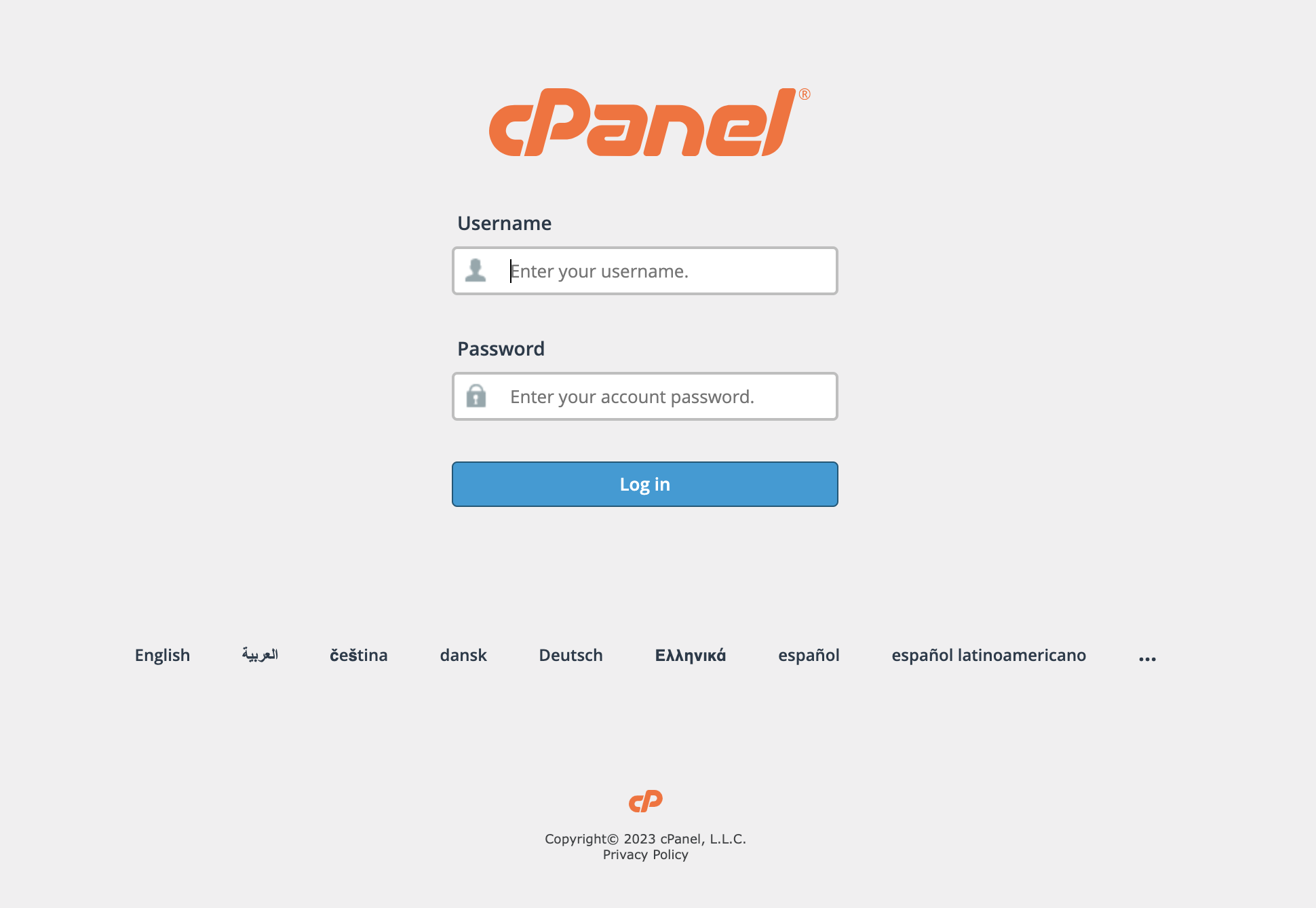
cPanel is a web-based control panel that provides a graphical user interface (GUI) to simplify the management of web hosting accounts.
It is renowned for its user-friendly nature and comprehensive suite of tools.
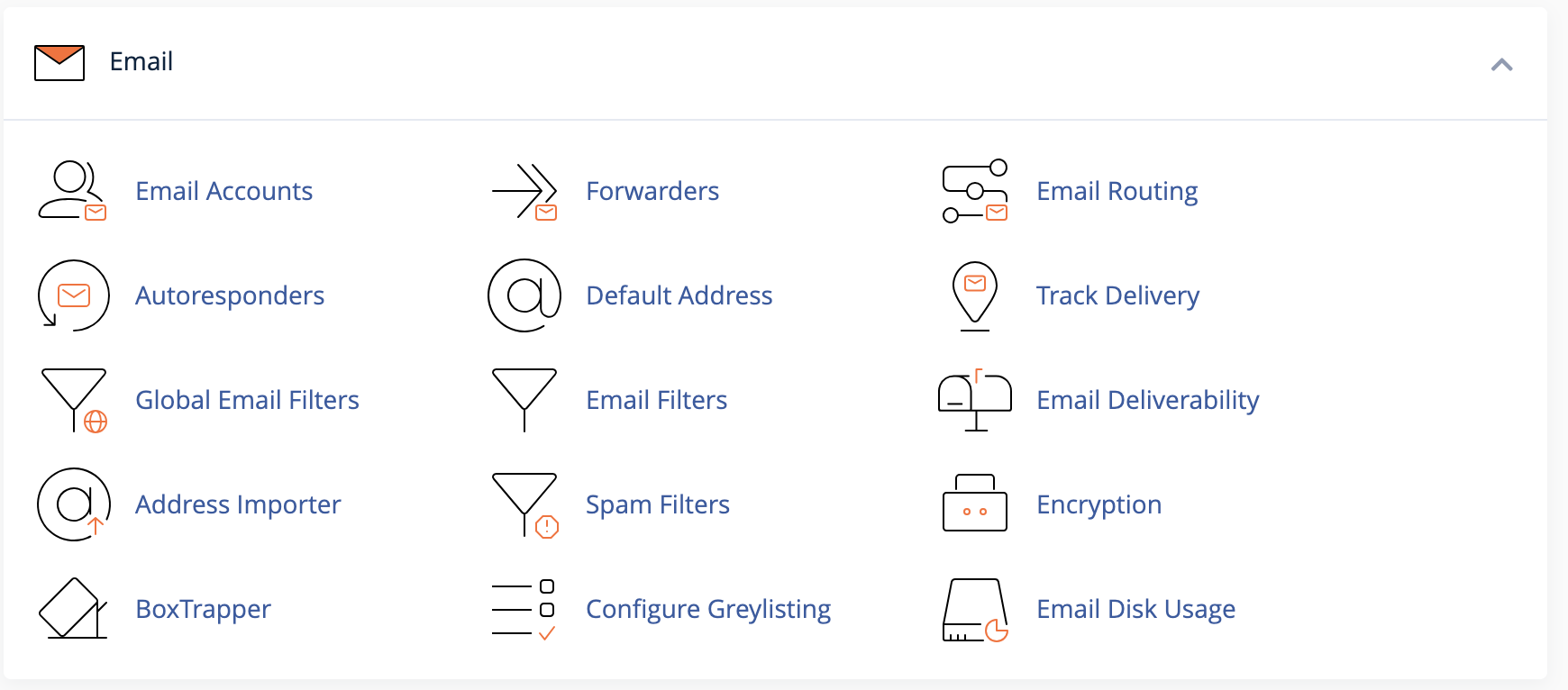
With cPanel, users gain easy access to various functionalities that streamline website administration, including file management, email setup, database management, domain management, security features, and more.
Seamless WordPress Installation

Through cPanel’s built-in software installer, Softaculous, you can install WordPress with just a few clicks — no manual database setup, no uploading files over FTP.
That said, a one-click install still leaves you with a default, unoptimized setup; if you want a site that’s actually built for performance and conversions from day one, that’s where custom WordPress development comes in.
Effortless File Management
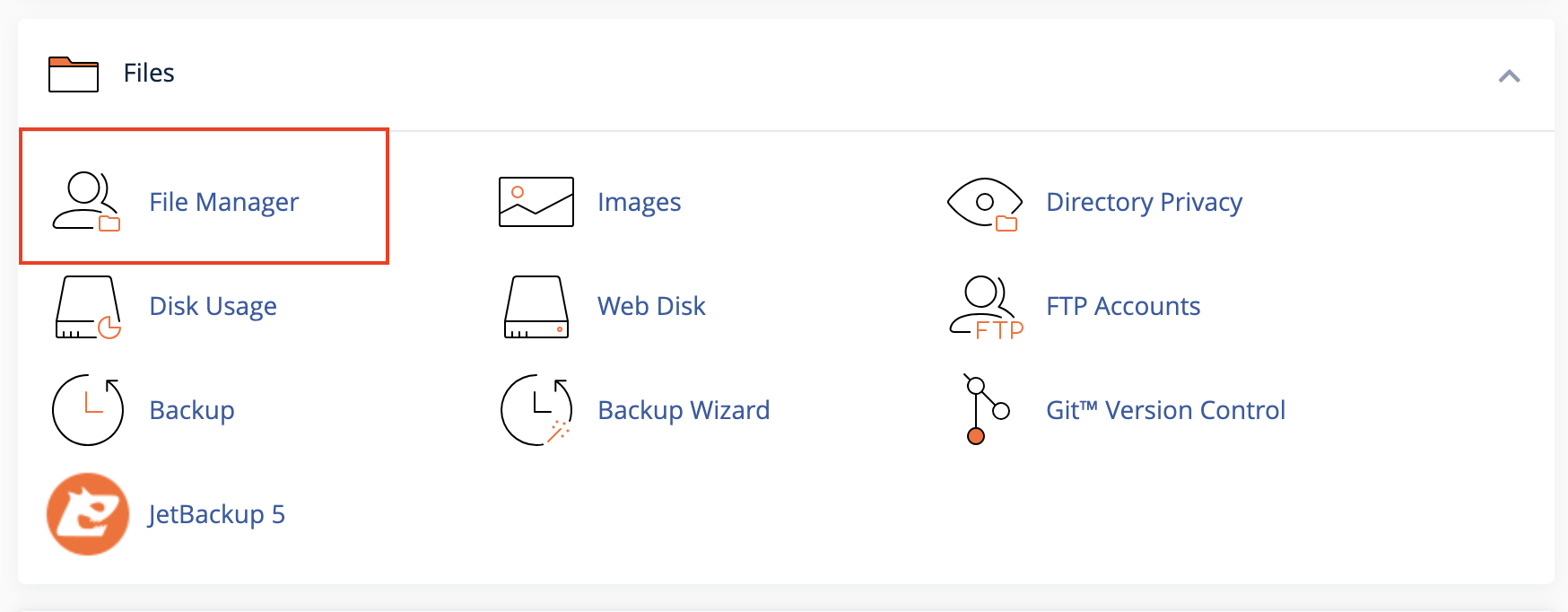
This matters most when something breaks. Say a plugin update causes a white screen:
you can go straight into File Manager, rename the plugin’s folder to disable it, and get the site back up in under a minute. It’s also where you’d go to edit wp-config.php directly — for example, to turn on debug mode when you need to see what’s actually causing an error.
If your site’s files have been tampered with or you’re dealing with unfamiliar file names showing up in directories you don’t recognize, that’s usually a sign of a bigger problem than a routine fix, at that point it’s worth having a WordPress malware removal check done rather than troubleshooting file by file.
Database Management
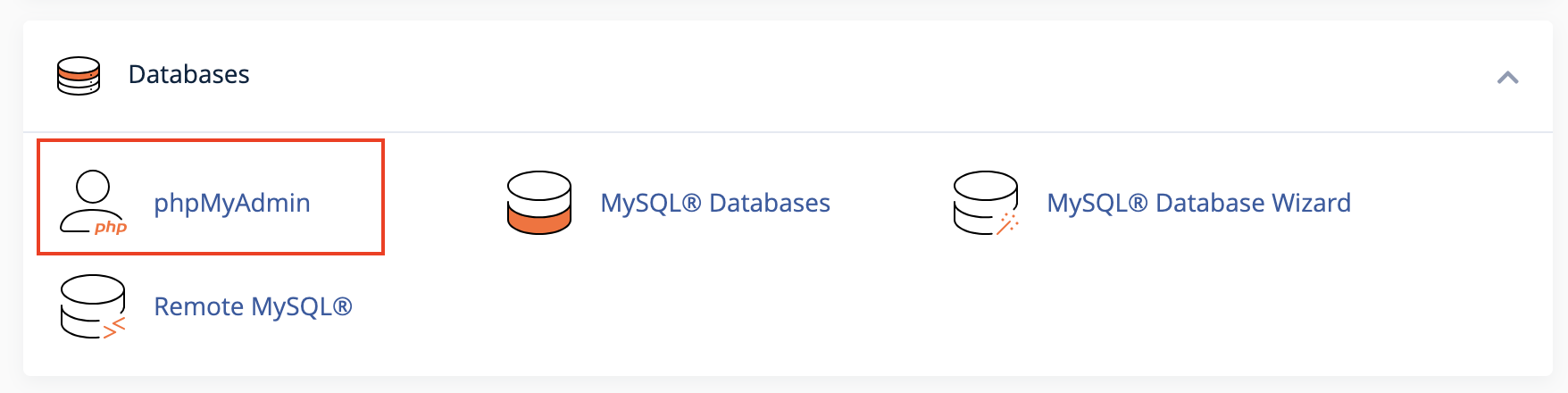
WordPress stores everything — posts, pages, settings, user data — in a MySQL database. cPanel gives you access to it through phpMyAdmin, a browser-based tool for viewing and editing that database directly.
One thing worth being careful about: editing a live database directly can break a site instantly if a query goes wrong — there’s no undo. Always back up the database before making any manual changes in phpMyAdmin, even something that looks minor.
Email Configuration
Enhanced Security Measures
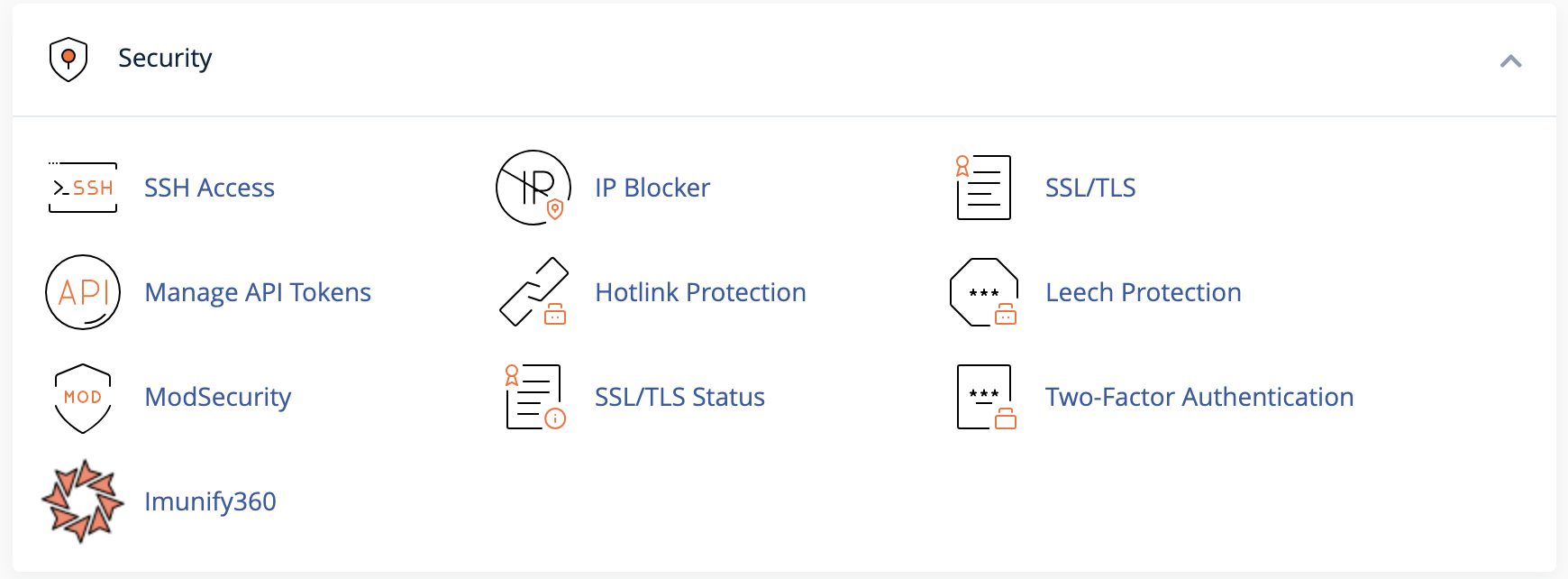
SSL/TLS management is the one most site owners already know — it’s what puts the padlock in the browser and encrypts traffic between your site and its visitors.
Beyond that, cPanel gives you IP Blocker to manually ban addresses that are hammering your login page, ModSecurity as a web application firewall that filters out common attack patterns before they reach WordPress, and Two-Factor Authentication to stop a stolen password from being enough to get in. Imunify360, where available, adds automated malware scanning and intrusion detection on top of all of it.
None of these tools do much good if they’re switched on once and forgotten. Security settings need to be checked and adjusted as plugins update and new vulnerabilities surface, which is part of what ongoing WordPress maintenance actually covers.
Domain and DNS Management