TL;DR
To edit wp-config.php, access your WordPress files through your hosting File Manager or SFTP, locate the configuration file, and save an unchanged backup before making changes. Use a plain-text code editor, modify only the setting you need, then save the file and check that your website still works.
Important: wp-config.php contains sensitive database credentials and authentication keys. Keep backup copies private and make sure you can restore the original file if WordPress stops loading.
wp-config.php, a PHP configuration file that WordPress reads when loading the site.What Is wp-config.php in WordPress?
wp-config.php is a PHP configuration file that provides WordPress with essential configuration settings, including the information needed to connect to its database.
- Database settings: DB_NAME, DB_USER, DB_PASSWORD, and DB_HOST.
- Authentication keys and salts: Values used as part of WordPress authentication and cookie security.
- Database table prefix: The $table_prefix variable identifying the installation’s database tables.
- Debugging settings: Constants such as WP_DEBUG.
- Additional configuration: Optional settings that affect WordPress behavior.
Before Editing wp-config.php
1. Confirm file access. Make sure you can access your WordPress files through File Manager, SFTP, or SSH. Some managed hosting providers handle configuration differently.
2. Save an unchanged backup. Download wp-config.php and store it securely outside your website’s public directory. Don’t expose database credentials or authentication keys.
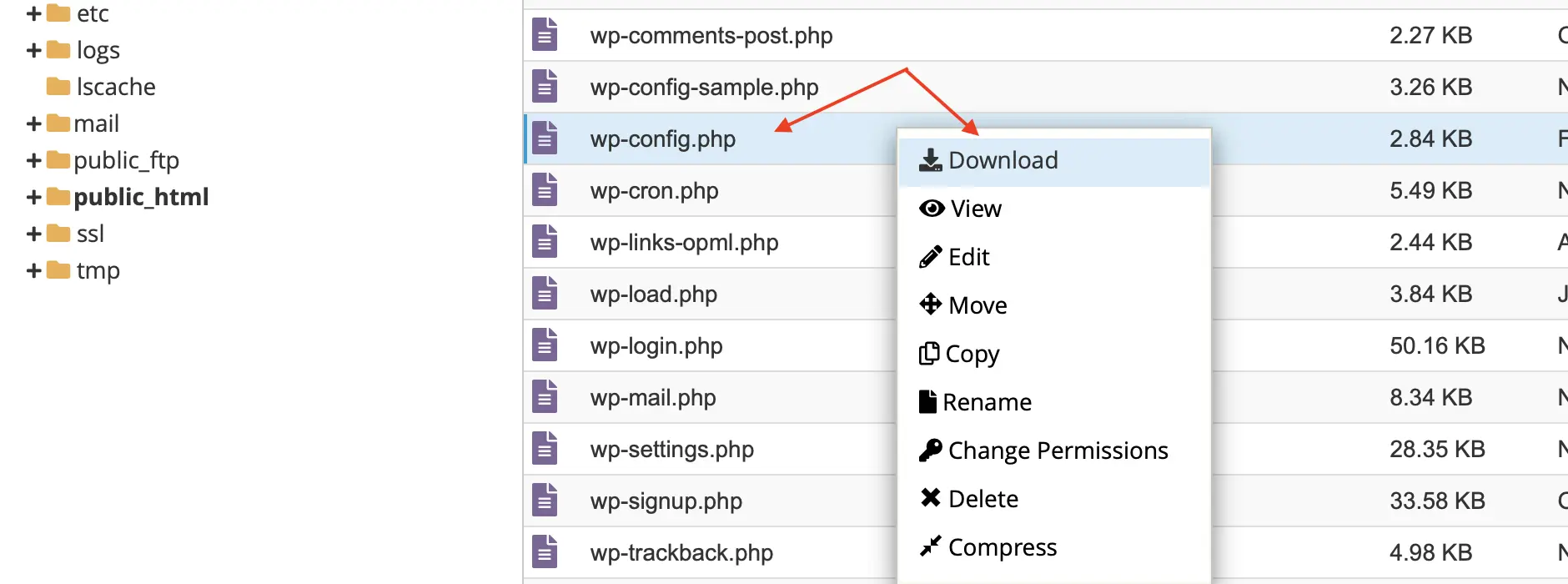
3. Check your recovery options. Confirm that you can restore the original file even if the WordPress dashboard becomes unavailable. A configuration backup isn’t a substitute for a complete website and database backup. For ongoing protection, consider automated WordPress backups that cover both files and database content.
4. Use staging when possible. Test changes away from the live website, especially when troubleshooting server-related issues. If you don’t have a staging environment, follow our WordPress staging setup guide before modifying your production site.
How to Find wp-config.php in WordPress
Method 1: Find wp-config.php Using cPanel File Manager
1. Log in to your hosting account and open cPanel → File Manager.
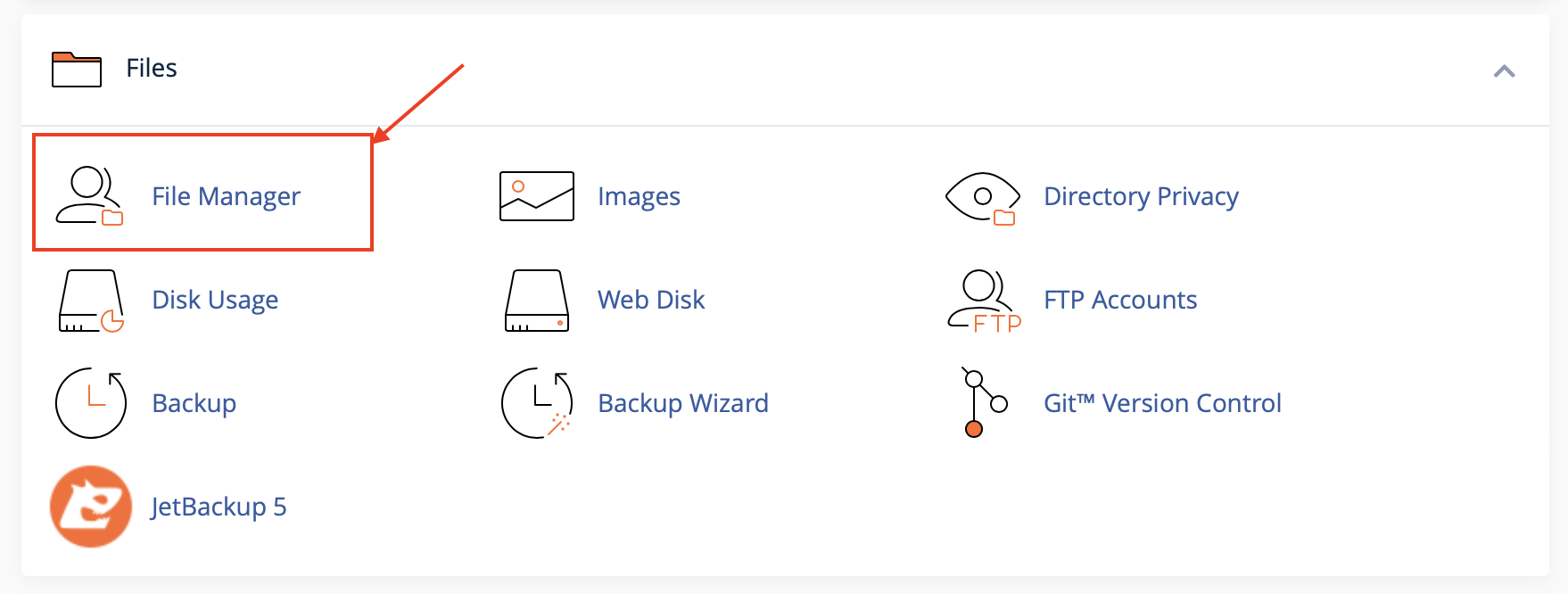
2. Navigate to the website’s document root. This is often public_html, but other domains may use different directories.
3. Find the wp-admin, wp-content, and wp-includes folders.
4. Look for wp-config.php alongside them.
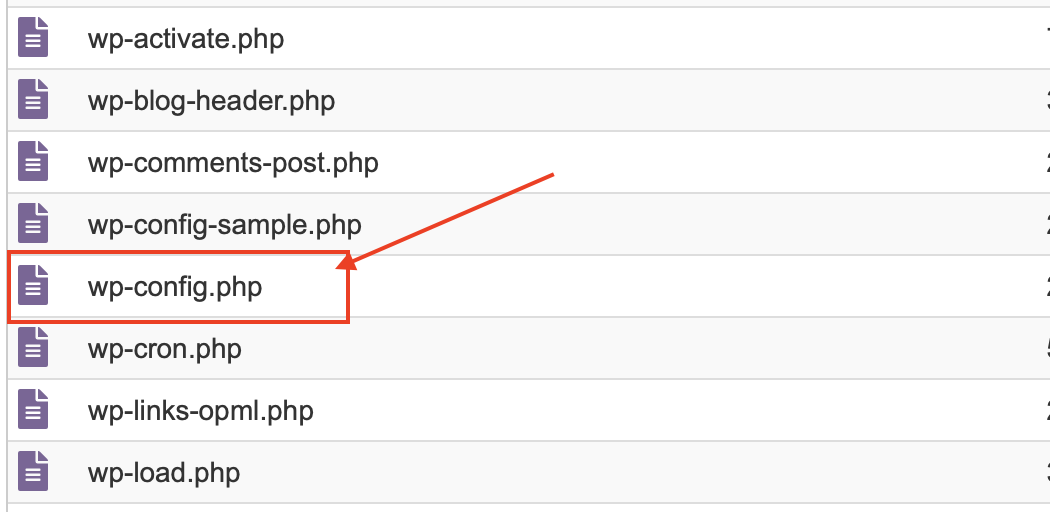
5. If it isn’t present, check the parent directory.
Make sure you’re browsing the correct website if your hosting account contains multiple installations.
Method 2: Find wp-config.php Using SFTP
1. Open your SFTP client and select the SFTP protocol.
2. Connect using the hostname, username, authentication details, and port provided by your host. SFTP commonly uses port 22, but your provider may configure another port.
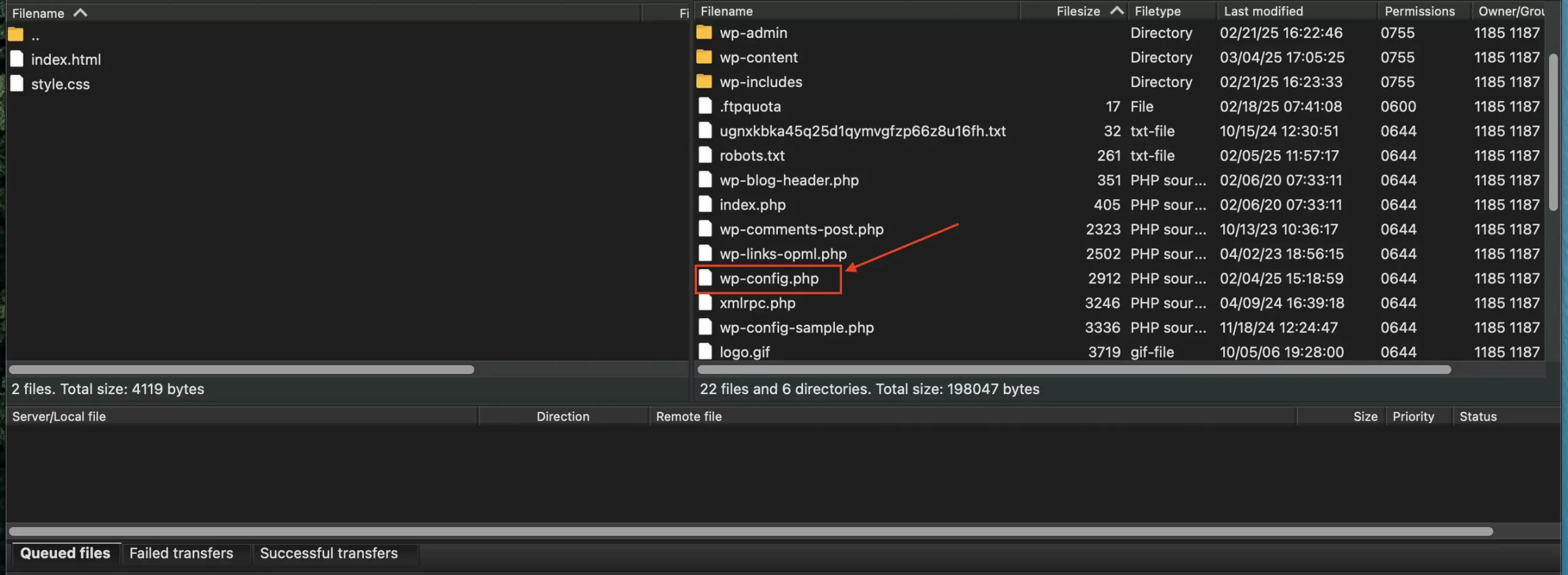
3. Navigate to the WordPress installation directory.
4. Find wp-config.php alongside the main WordPress folders, or check the parent directory.
Method 3: Find wp-config.php Using SSH
cd ~/public_htmlls -lals -la ..If you still can’t locate the file, verify the installation path with your hosting provider rather than creating a replacement.
How to Edit wp-config.php Safely
1. Open the file. Use your hosting File Manager’s Edit option, or download a working copy through SFTP and open it in a plain-text code editor. Avoid word processors.
2. Find the existing setting. Search for the constant or variable you need. If it’s already defined, change that definition rather than creating a duplicate.
3. Edit carefully. Preserve PHP syntax, including quotation marks, parentheses, and semicolons. Don’t alter unrelated settings. When adding a new WordPress constant, follow its documented placement requirements, generally before WordPress loads wp-settings.php.
4. Save and apply the change. Keep the filename `wp-config.php` and save it as plain-text UTF-8 without BOM. If you edited the file directly in cPanel’s editor, save it there. If you edited a downloaded copy, upload it to the correct directory using cPanel File Manager or SFTP, replacing the intended file only after verifying its location.
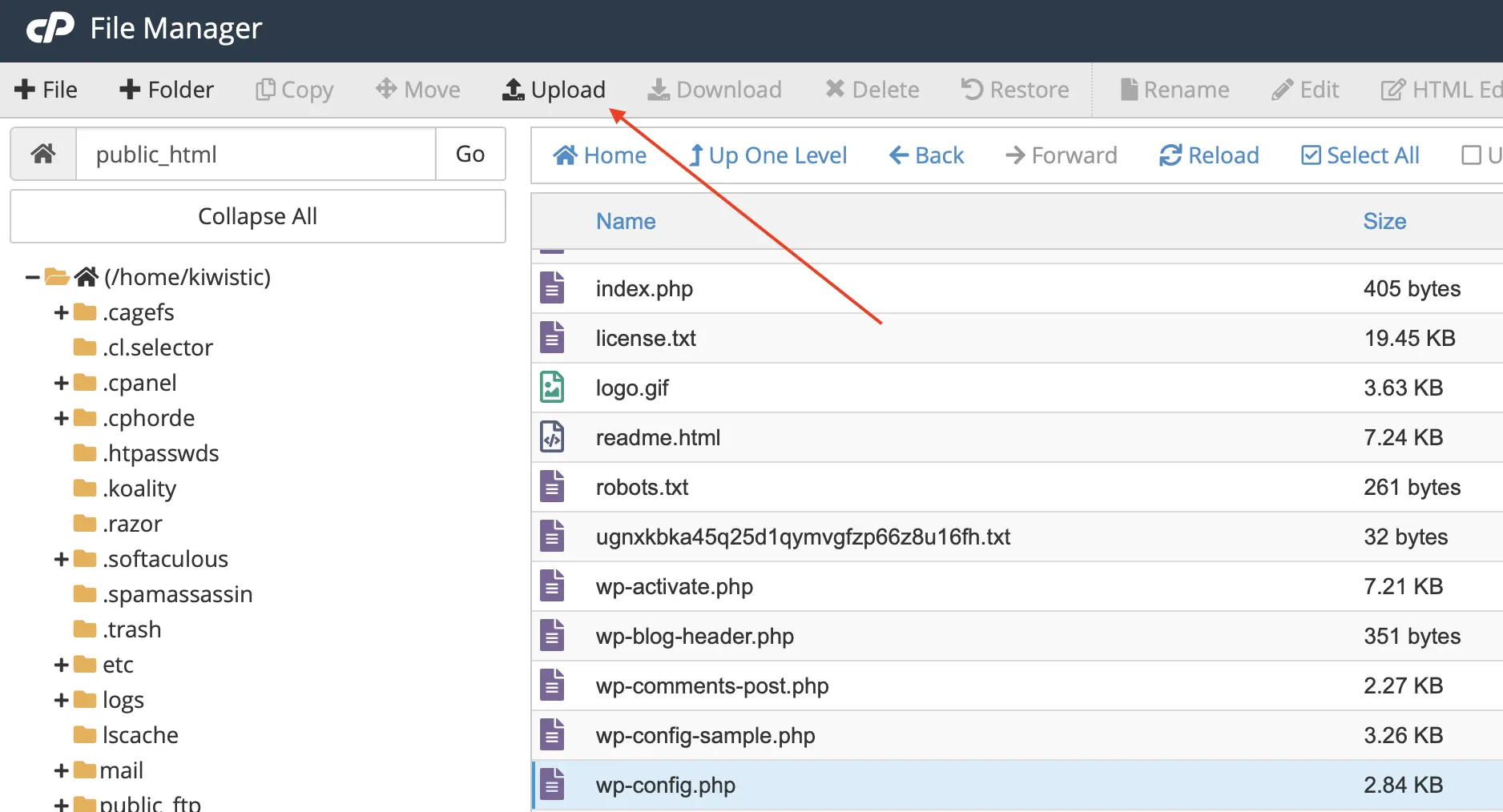
Uploading a modified file through SFTP
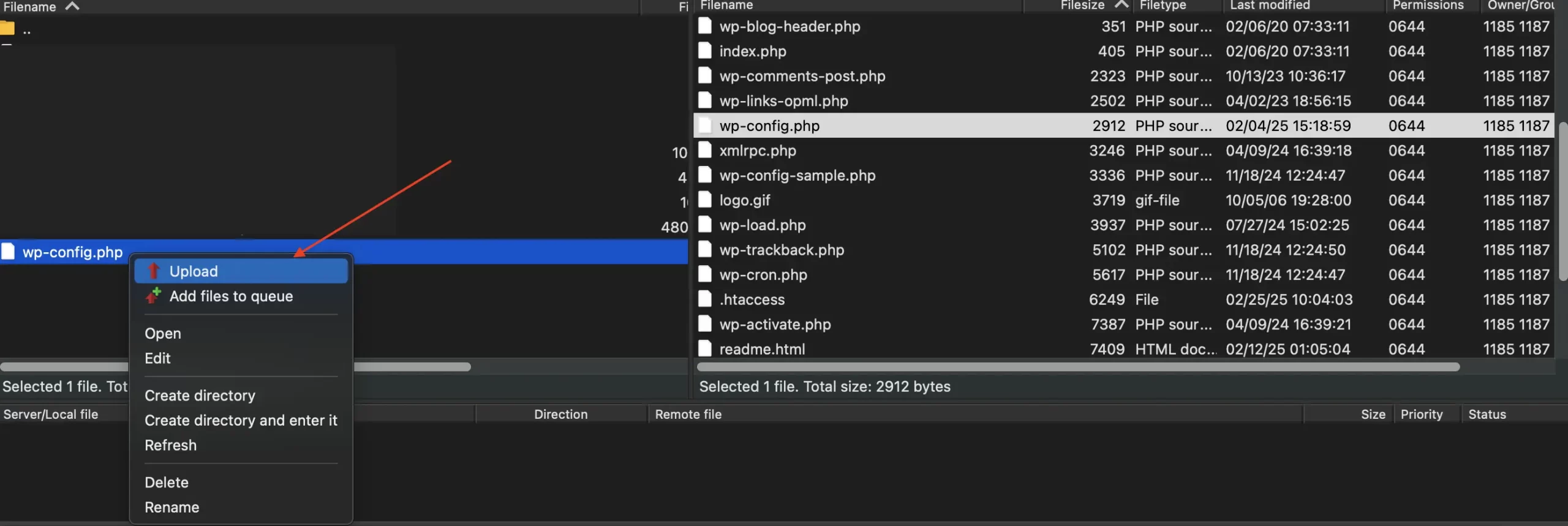
5. Check the result. Test the homepage, an internal page, the dashboard, and the setting you changed. If WordPress stops working, restore your original file through File Manager or SFTP.
Common wp-config.php Changes
Enable WordPress Debug Logging
WordPress debugging can help identify plugin, theme, or PHP errors that aren’t immediately visible.
define( 'WP_DEBUG', true );
define( 'WP_DEBUG_LOG', true );
define( 'WP_DEBUG_DISPLAY', false );Update Database Connection Settings
define( 'DB_NAME', 'database_name' );
define( 'DB_USER', 'database_user' );
define( 'DB_PASSWORD', 'database_password' );
define( 'DB_HOST', 'localhost' );Changing DB_PASSWORD in the file doesn’t change the database user’s actual password. Both values must match, or WordPress may display an Error establishing a database connection message.
If the database issue also prevents you from accessing WordPress, our WordPress login troubleshooting guide covers additional checks for database connection and admin access problems.
Adjust the WordPress Memory Limit
define( 'WP_MEMORY_LIMIT', '256M' );How to Restore wp-config.php if Something Goes Wrong
1. Access your website files through your hosting File Manager or SFTP. You don’t need the WordPress dashboard for this.
2. Locate the modified wp-config.php in its original directory.
3. Restore your unchanged backup, making sure the filename is exactly wp-config.php and that you’re replacing the file in the correct WordPress installation.
4. Test the website again, including the homepage and WordPress dashboard.
Important: Restoring the original file only reverses changes made to that file. If you also changed database credentials, server settings, or other files, additional recovery steps may be necessary.
If restoring the original configuration doesn’t bring your website back online, a one-time WordPress fix may be appropriate for diagnosing and resolving the underlying technical issue.
Troubleshooting and Security Best Practices
| Problem | What to check |
|---|---|
| Error establishing a database connection | Verify DB_NAME, DB_USER, DB_PASSWORD, and DB_HOST. If they haven’t changed, check whether the database server is available. |
| PHP syntax error or HTTP 500 | Review the edited lines for missing semicolons, incorrect quotation marks, or other syntax errors. Check the server’s PHP error log if available. |
| Changes cannot be saved | Confirm file ownership and permissions with your hosting provider. Don’t make the file publicly writable to bypass an access problem. |
| Unexpected behavior after editing | Compare the modified file with your backup and check whether the change was applied to the correct WordPress installation. |
Keep the Configuration File Protected
- Use secure access: Prefer SFTP or SSH over unencrypted FTP.
- Restrict file permissions: Use the most restrictive permissions compatible with your hosting environment. WordPress documents 400 or 440 as options in suitable configurations, but there’s no single value that works for every server.
- Protect backup copies: Store them outside publicly accessible website directories.
- Remove unnecessary debug logs: Logs may contain sensitive information. Protect their access and disable temporary debugging when troubleshooting is complete.
Conclusion
If WordPress stops loading, restore the original configuration first and investigate the cause rather than changing several settings at once. Knowing when to stop and check the underlying problem is just as important as knowing how to edit the file.
If your website requires regular backups, update testing, and technical support, explore our WordPress maintenance services.